Bulk Changes in Tasks allows users with the right permission to select multiple tasks at once and apply changes in a single action. Saving time when managing large task lists.
Who Can Use This Feature?
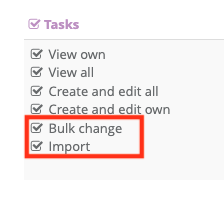
Bulk actions are only available to users who have been granted the "Bulk change" permission. If you don't see the bulk action toolbar, contact your administrator to request this permission.
How to Select Tasks
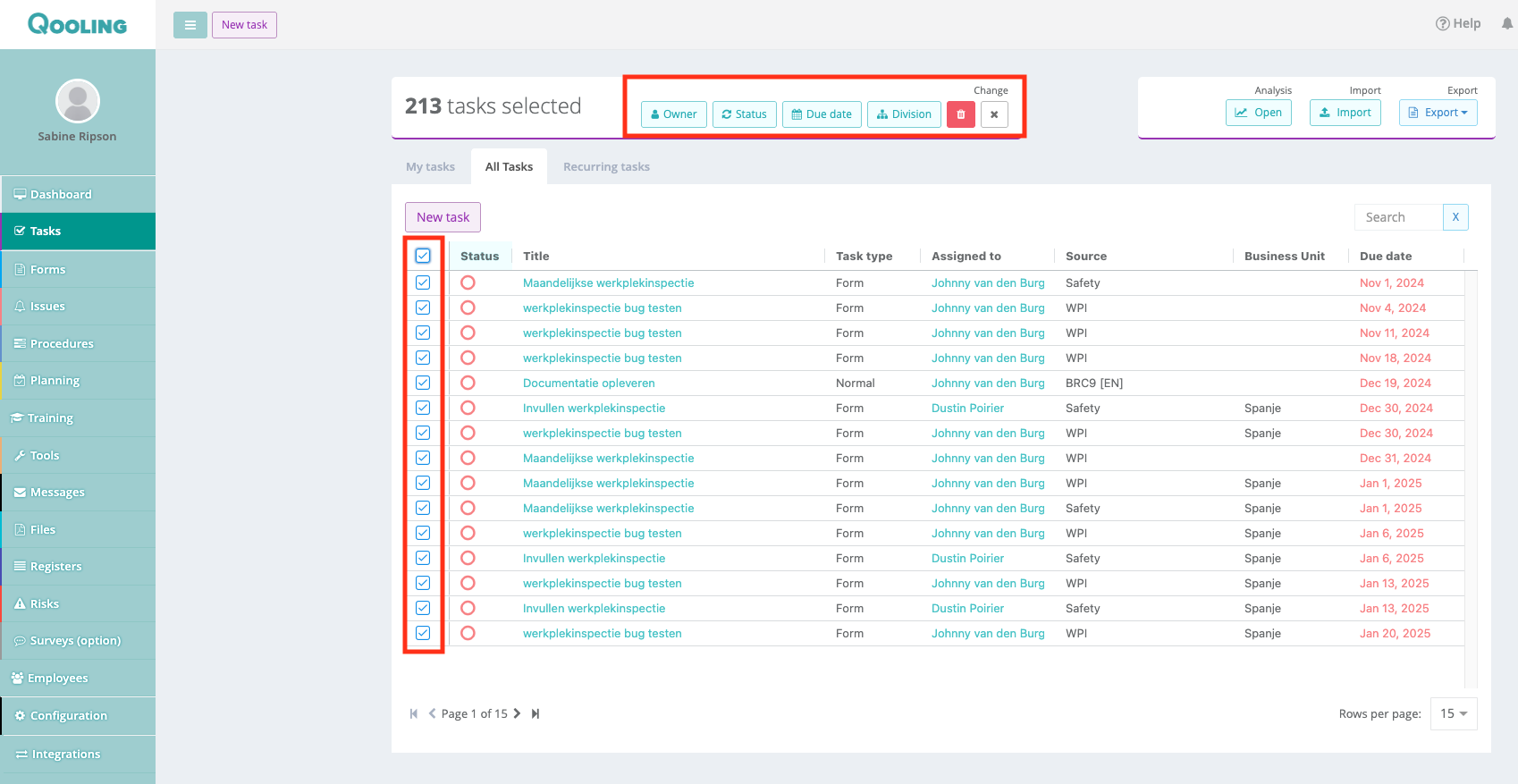
Use the existing task filters to narrow your list, then either:
- Select all filtered results at once, or
- Manually check individual tasks using the checkboxes
Available Bulk Actions
Once tasks are selected, five actions are available from the toolbar:
| Action | What It Does |
|---|---|
| Change Owner | Reassign selected tasks to a different user |
| Change Status | Update the status across all selected tasks (e.g., set to Finished) |
| Change Due Date | Set a new due date across selected tasks |
| Change Division | Move selected tasks to a different division |
| Delete | Permanently delete the selected tasks |
Confirmation Requirements
Some actions require explicit confirmation before proceeding:
- Delete and Close (Finished): You must type the exact number of selected tasks (e.g.,
14) in a confirmation dialog before the action executes. This is intentional to prevent accidental mass changes. - All other actions: Select the new value and confirm in the modal.
Special Behaviors
Closing tasks that require a conclusion (Corrective, Preventive, Correction types): If you bulk-close tasks that normally require a conclusion field, the system will automatically add "Closed in bulk" as the conclusion text. The approval flow is bypassed, and the annotation makes it clear the task was closed in bulk.
Deleted tasks: Permanently removed, logged in the system log, and task followers are notified.
Notifications
Notifications for bulk operations work as follows:
- Affected users (followers and assigned users) receive one grouped in-app notification e.g., "3 tasks status changed"
- The user who initiates the bulk action does not receive a notification
- No emails are sent for bulk operations in-app notifications only
Large Operations (10+ Tasks)
Operations on 10 or more tasks are processed in the background. A confirmation message will indicate the operation has been scheduled, and the task list will refresh automatically once processing is complete.
Task Import (Related Feature)
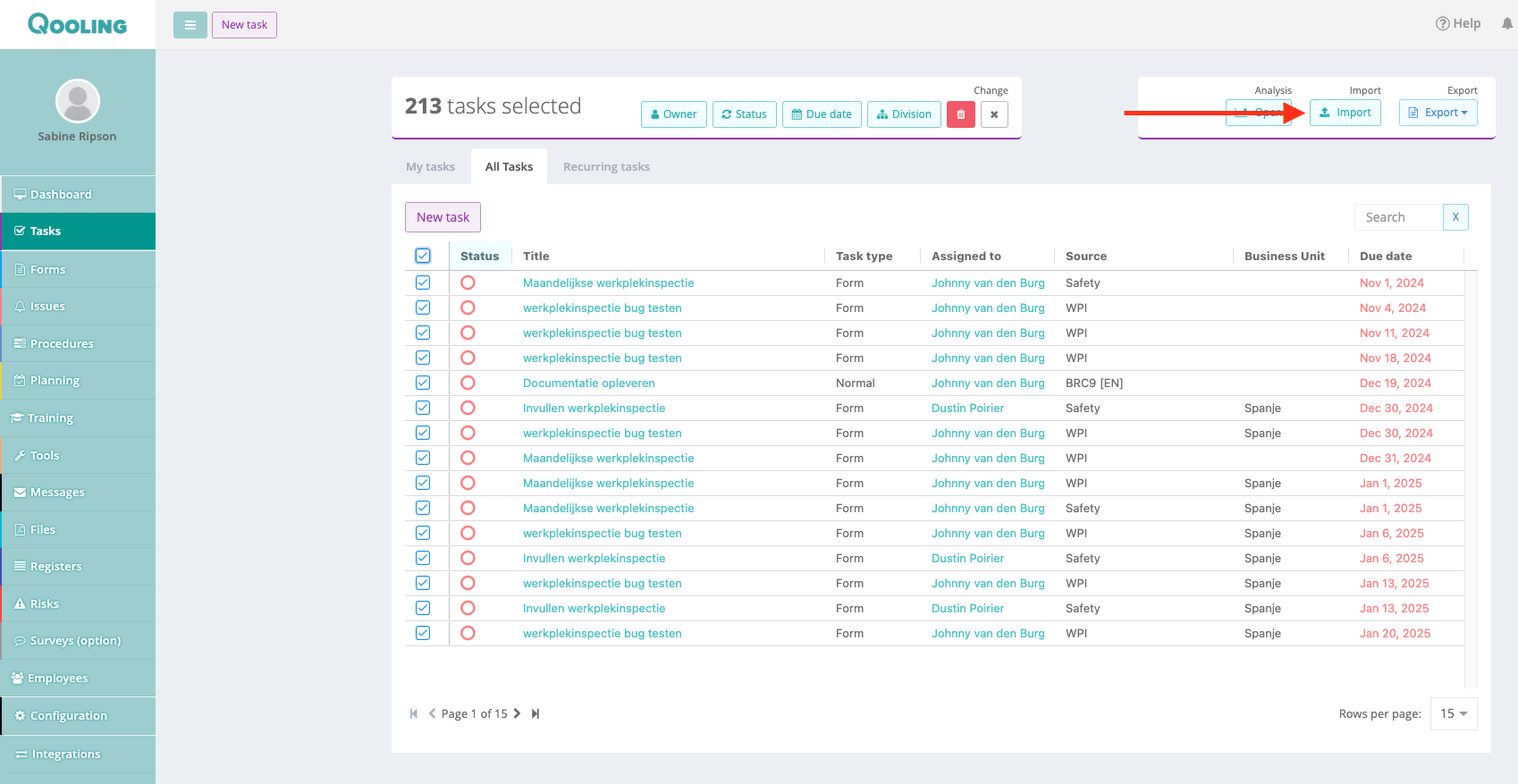
As part of this release, task importing was also moved to a permission-based model. Users with the "Import Tasks" permission can import tasks via CSV:
- Go to the Tasks page and click Import
- Download the CSV template
- Fill in your data and upload the file
Note: No notifications are sent to users when tasks are imported.
CSV Template Fields
| Field | Required | Notes |
|---|---|---|
| title | Yes | Task name |
| description | No | |
| assignedUser | No | Username; defaults to creator if empty |
| taskType | No | NORMAL, CORRECTIVE, PREVENTIVE, CORRECTION, or FORM |
| taskSource | Yes | e.g., Meeting, Audit |
| dueDate | No | |
| creationDate | No | Defaults to today |
| completionDate | No | If set, task is marked Finished |
| creator | No | Defaults to the importing user |
| reminderDaysBefore | No | Default: 7 days |
| form | No | Form name (only for FORM type) |
FAQ
Can I undo a bulk change? No. There is no undo or rollback functionality. Always review your selection carefully before confirming. However, you can of course bulk delete after importing.
Is there a task limit for bulk operations? No hard limit. Operations on large sets are automatically processed in the background.
Why don't I see the bulk action toolbar? You need the "Bulk change" permission. Contact your administrator to have it assigned.
Will other users be notified when I make bulk changes? Yes, each affected user receives one grouped in-app notification. No emails are sent.
Can I undo a bulk change? No. There is no undo or rollback functionality. Always review your selection carefully before confirming.
Is there a task limit for bulk operations? No hard limit. Operations on large sets are automatically processed in the background.
Why don't I see the bulk action toolbar? You need the "Bulk change" permission. Contact your administrator to have it assigned.
Will other users be notified when I make bulk changes? Yes, each affected user receives one grouped in-app notification. No emails are sent.
Was this article helpful?
That’s Great!
Thank you for your feedback
Sorry! We couldn't be helpful
Thank you for your feedback
Feedback sent
We appreciate your effort and will try to fix the article