In Qooling, it is now possible to automatically assign the correct owner and followers based on a selected value in a report (such as a project number). This is ideal for organizations that work on a project basis or have frequently changing teams.
1. Setting up the Master Table
For this to work, the user data must be included in the relevant master table (e.g., 'Project').
Go to Configuration > General > Master Table.
Open the desired master table or create a new one.
Add columns for the user roles:
When adding a new column, select the type User Select.
Give the column a logical name, such as 'Project Lead' or 'Working Group'.
Fill the table with data:
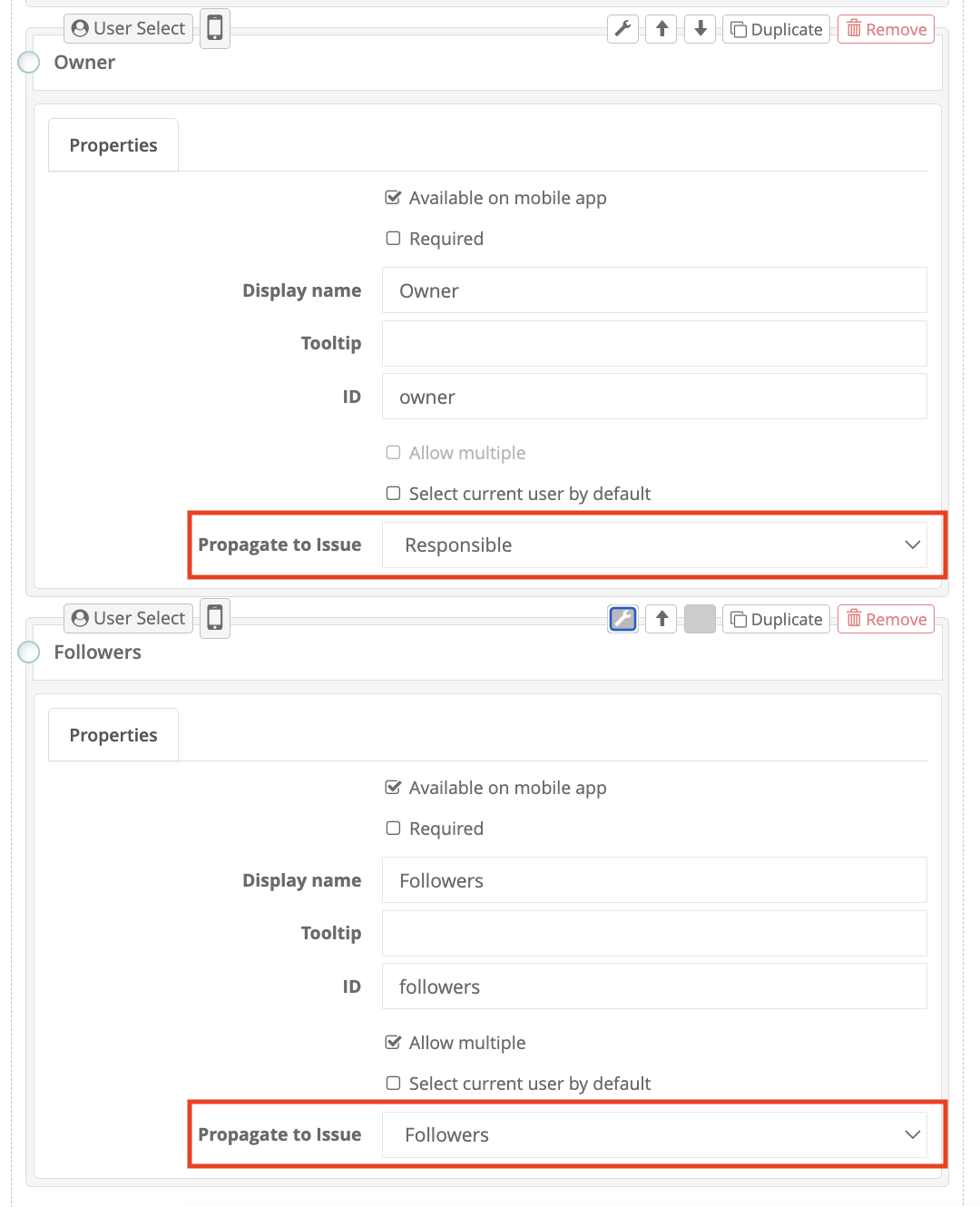
Per row (e.g., per project), you can now select a specific user as the owner and potentially multiple users (or a group) as followers.
Tip: This can be done manually, via CSV import, or through an API connection with your external software.
2. Linking to the Issue Type (Incidents)
Once the master table is set up, the issue type (e.g., Customer Complaint or Incident) must be configured to recognize this table as the source for notifications.
Go to the configuration of the relevant Issue type.
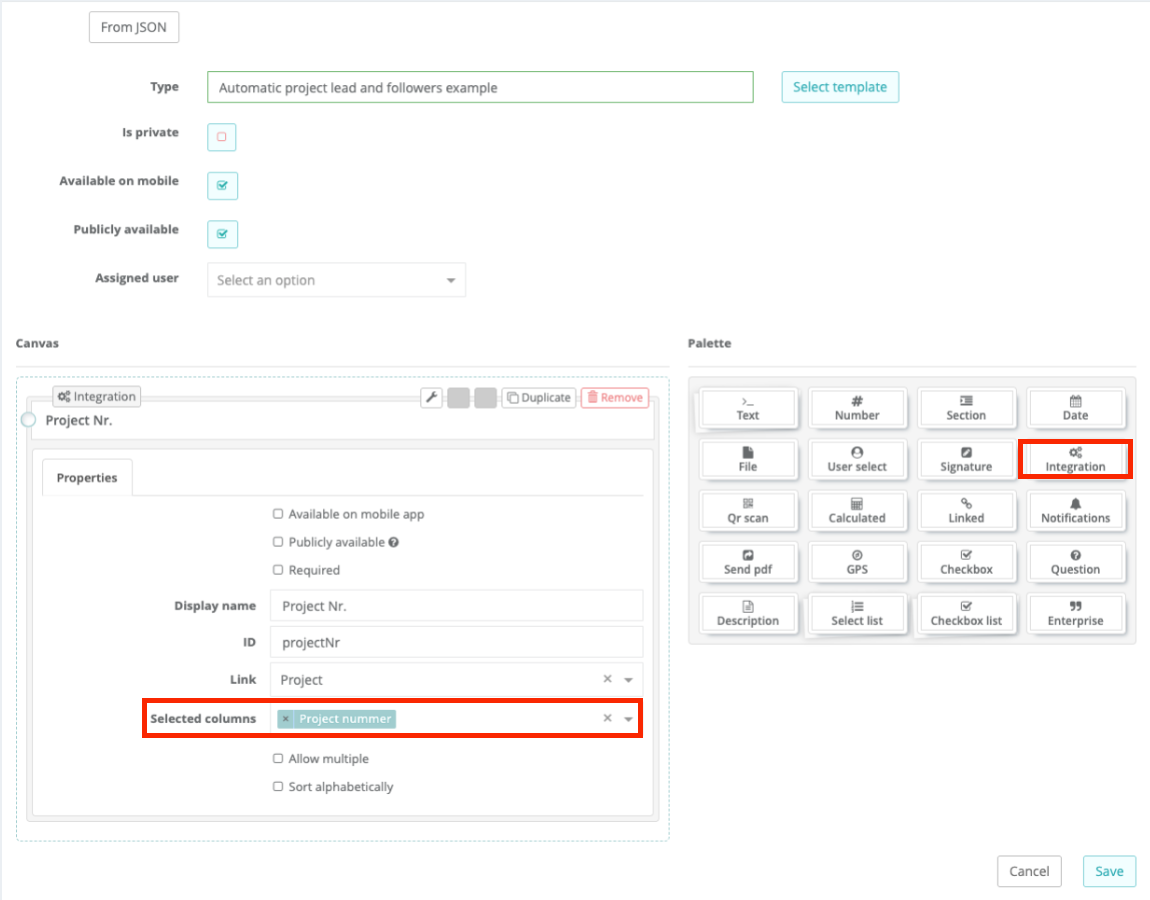
Add an Integration field that links to the newly configured master table (e.g., 'Select Project').
Configure the settings so that the 'Project Lead' column from the master table is automatically assigned as the Owner in the report.
Do the same for the 'Working Group' column to automatically add these users as Followers.
Benefits
Flexibility: You no longer need to manually add followers to every individual report.
Automation: When changes are made in the master table (or via the API), new reports are directly sent to the correct people without needing to adjust the issue type configuration.
Scalability: Highly suitable for organizations with hundreds of projects or locations.
Was this article helpful?
That’s Great!
Thank you for your feedback
Sorry! We couldn't be helpful
Thank you for your feedback
Feedback sent
We appreciate your effort and will try to fix the article