In Qooling, you can now ensure that employees stay compliant by linking specific procedures directly to their Job Descriptions. This functionality automatically flags necessary documents for employees to read and confirm, providing a clear path for onboarding and continuous training.
Phase 1: Creating a Job Description with Required Procedures
The first step is defining which documents are essential for a specific role.
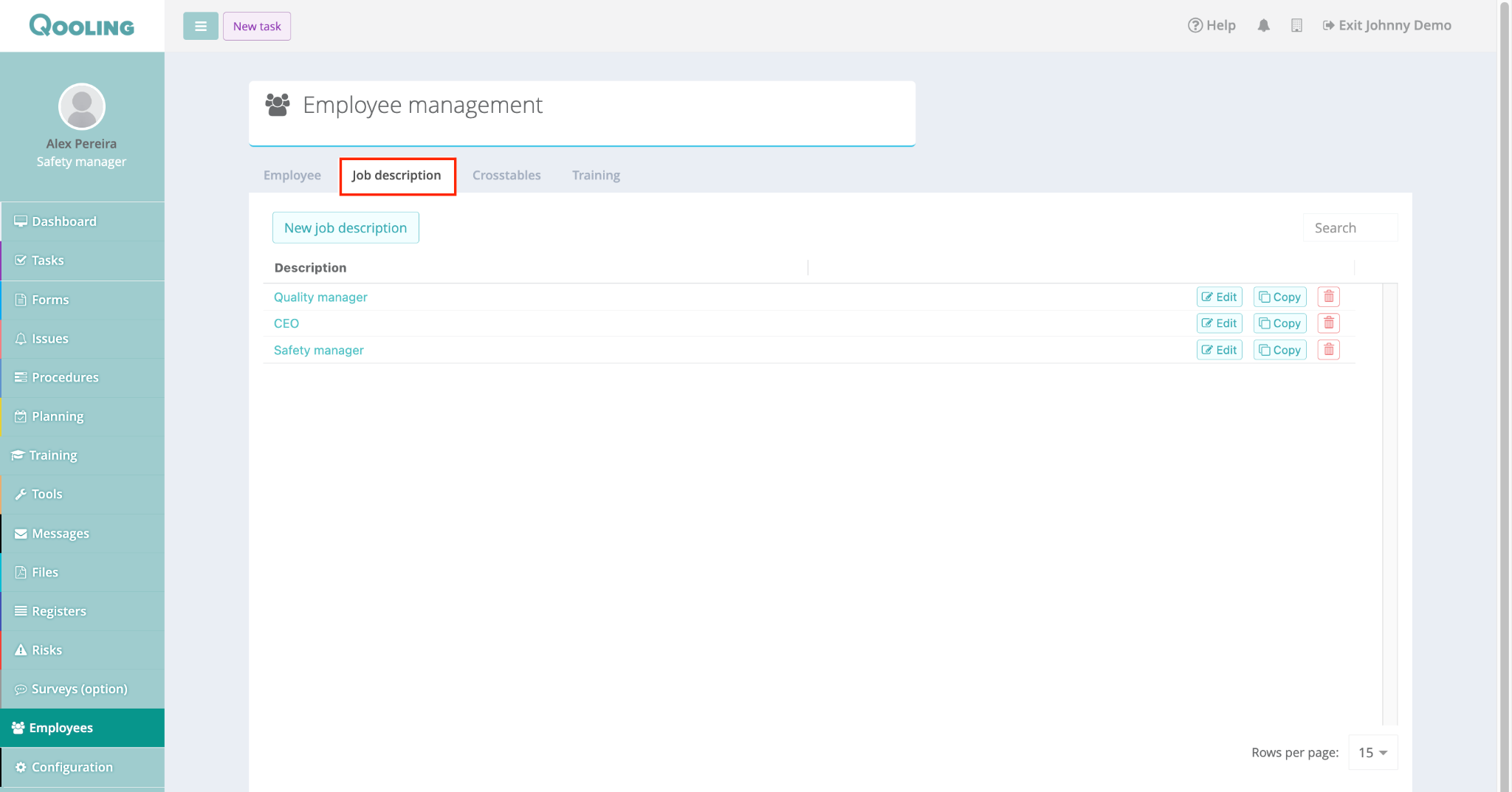
Navigate to the Employees module.
Click on the Job Description tab at the top.
Select New job description (or edit an existing one).
Enter the Title (e.g., "Safety Manager") and a brief description.
Scroll down to the Required procedures for the job section.
Click the field to open the selection menu. Use the search bar to find and select the specific procedures (e.g., Disaster Recovery Plan, Quality Policy, etc.).
Click Save.
Phase 2: Assigning the Job Description to a User
Once the job description is ready, you must link it to the relevant employees.
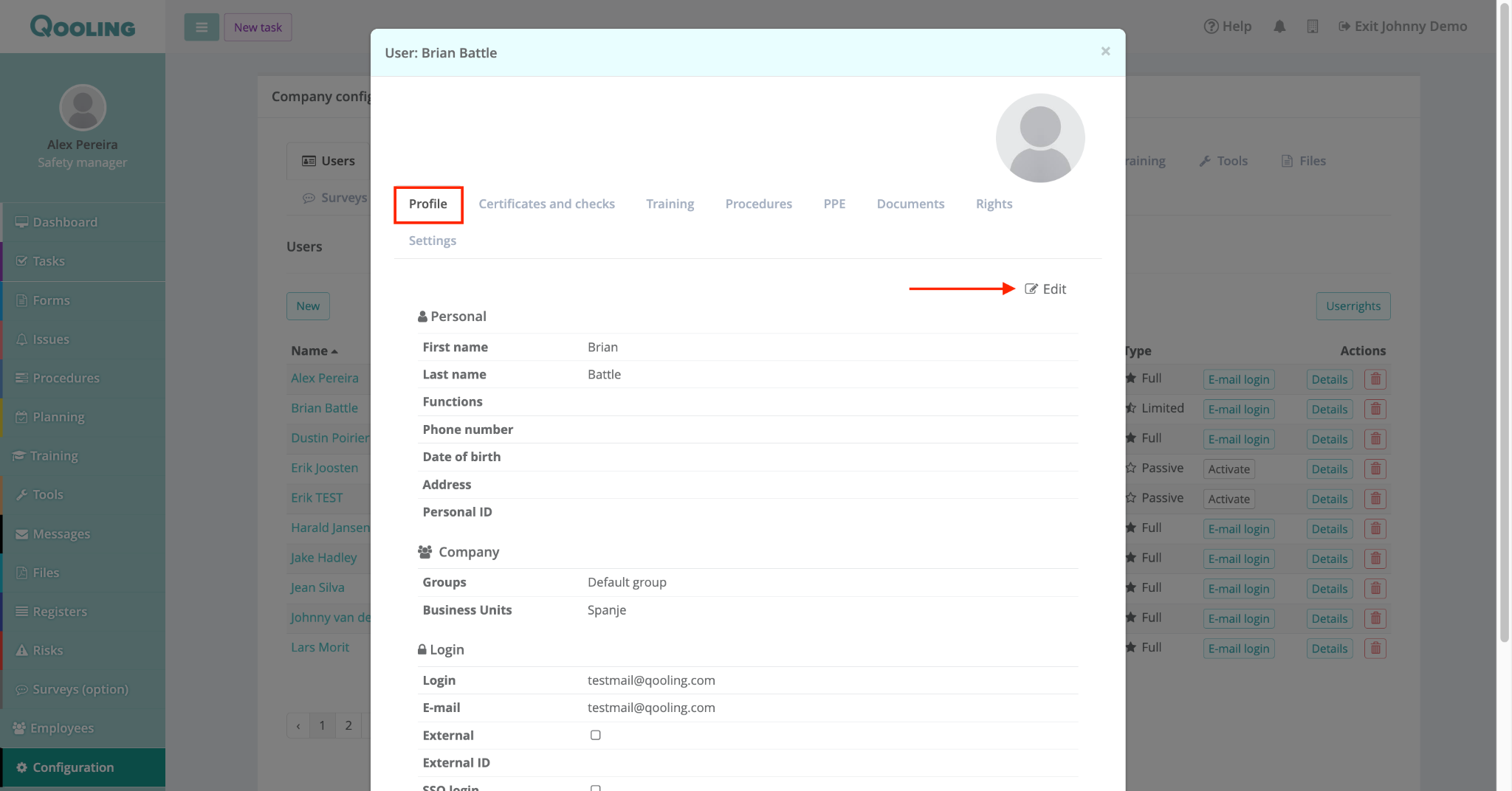
Go to Configuration > Users.
Click Details next to the desired user.
In the Profile tab click on the ‘edit’ button.
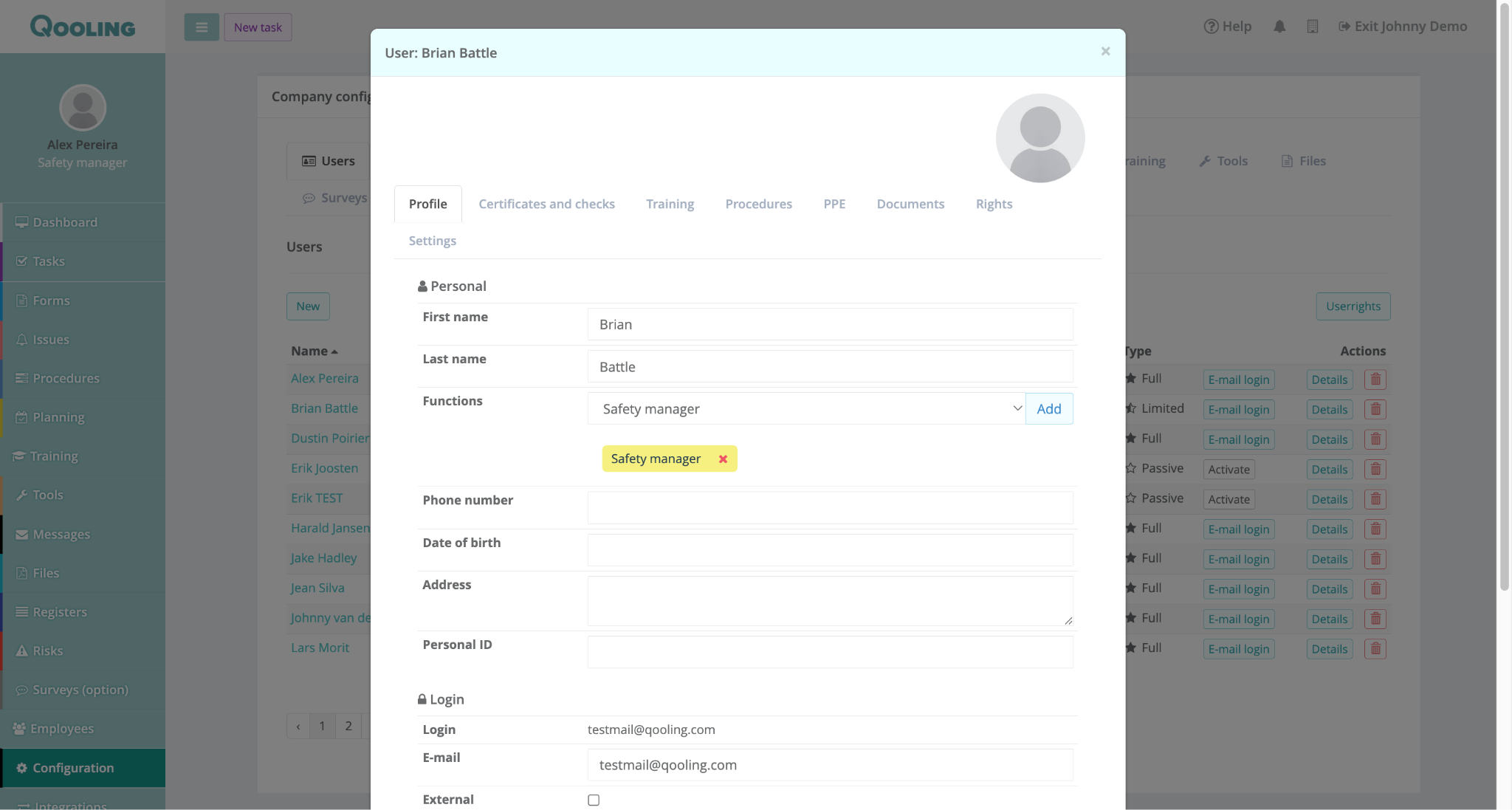
In the Functions field, select the newly created Job Description from the dropdown and click on the Add button afterwards.
Click Save at the bottom of the user profile.
Phase 3: Confirming Required Procedures (Employee View)
When an employee has a job description assigned, their required read confirmation is prioritized in the Procedures module.
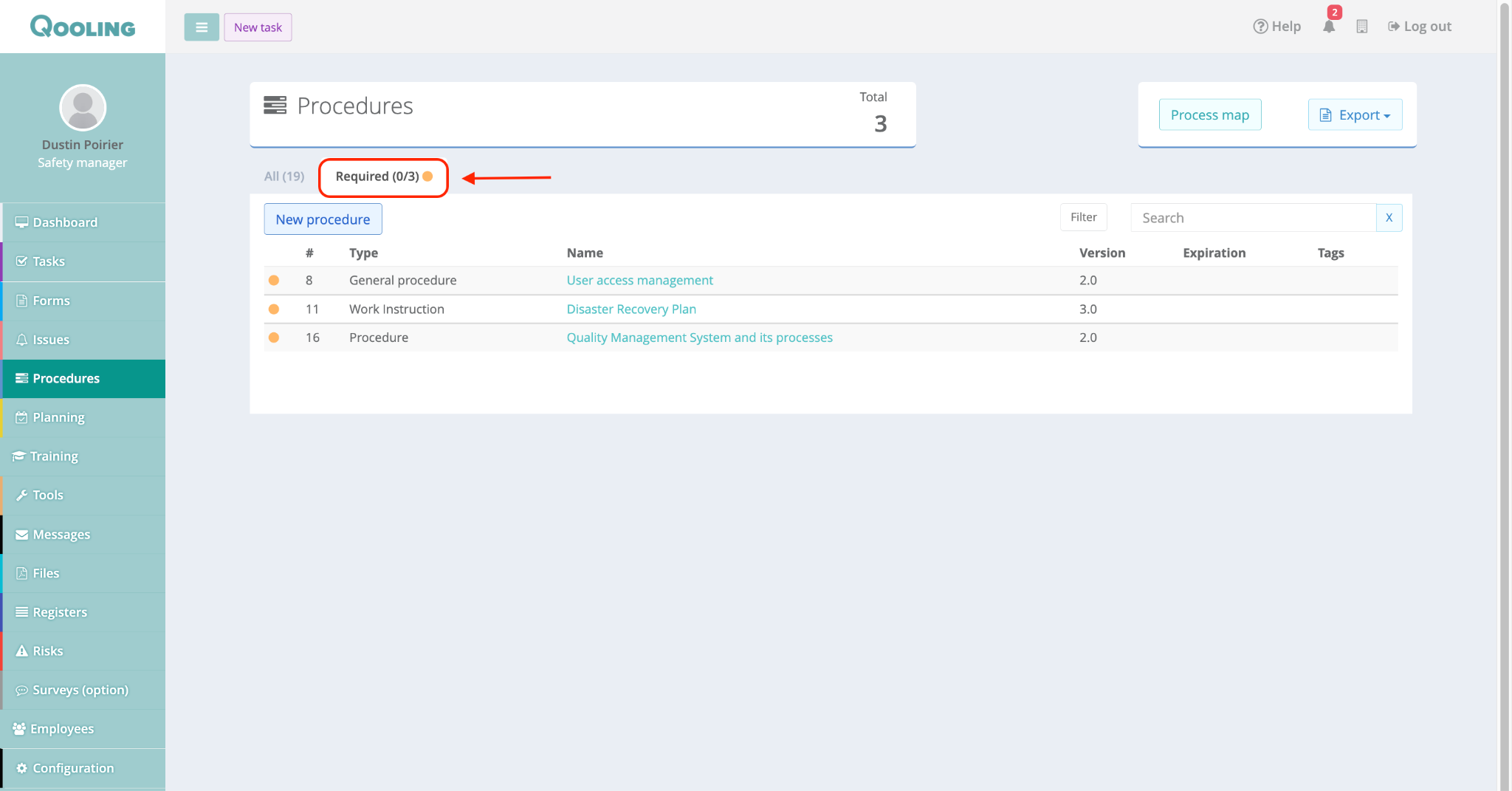
Navigate to the Procedures module.
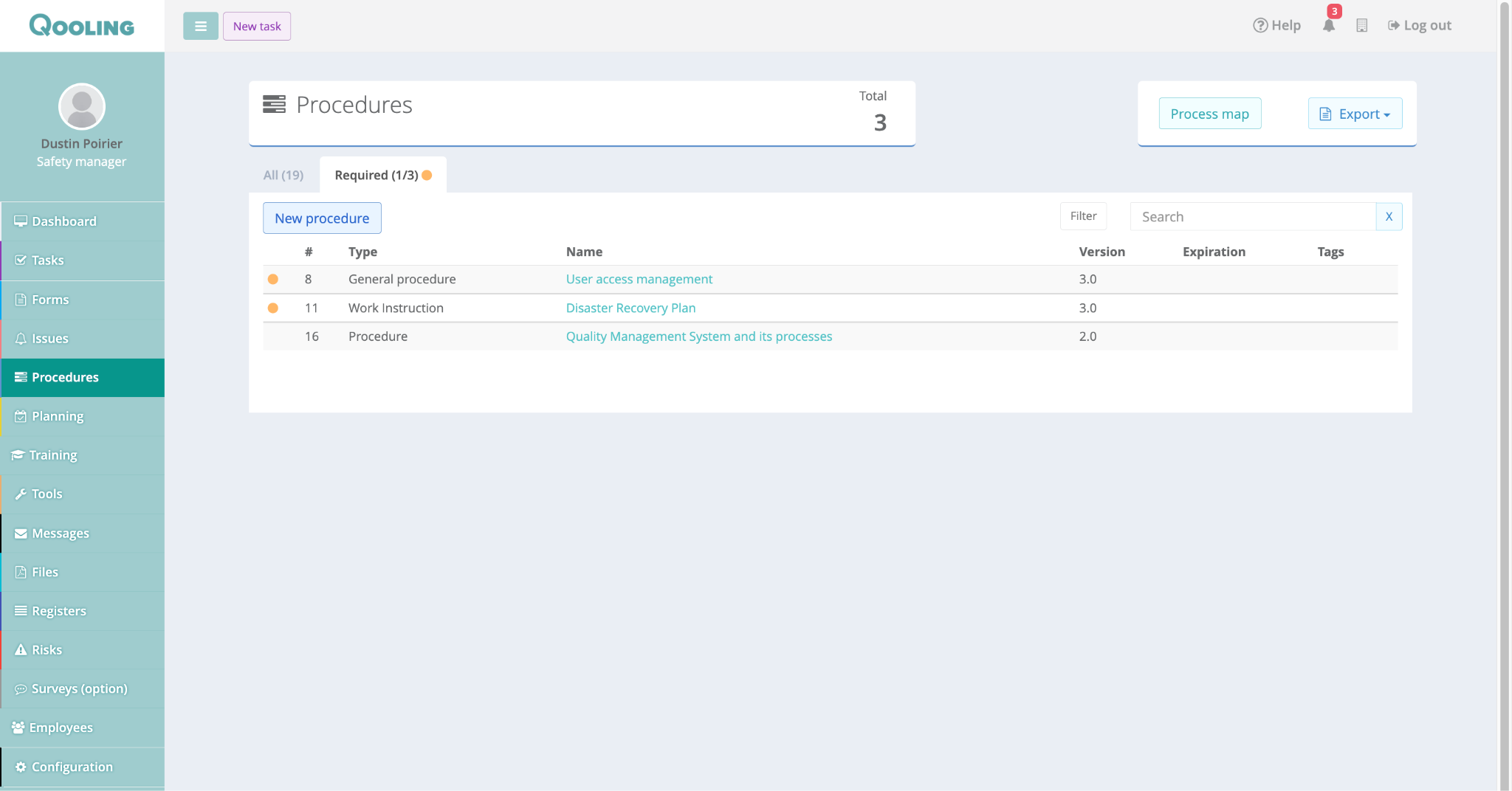
You will see a new tab labeled Required. The number in the orange badge indicates how many procedures still need your attention (e.g., Required (0/3)).
Click on a procedure title to open it.
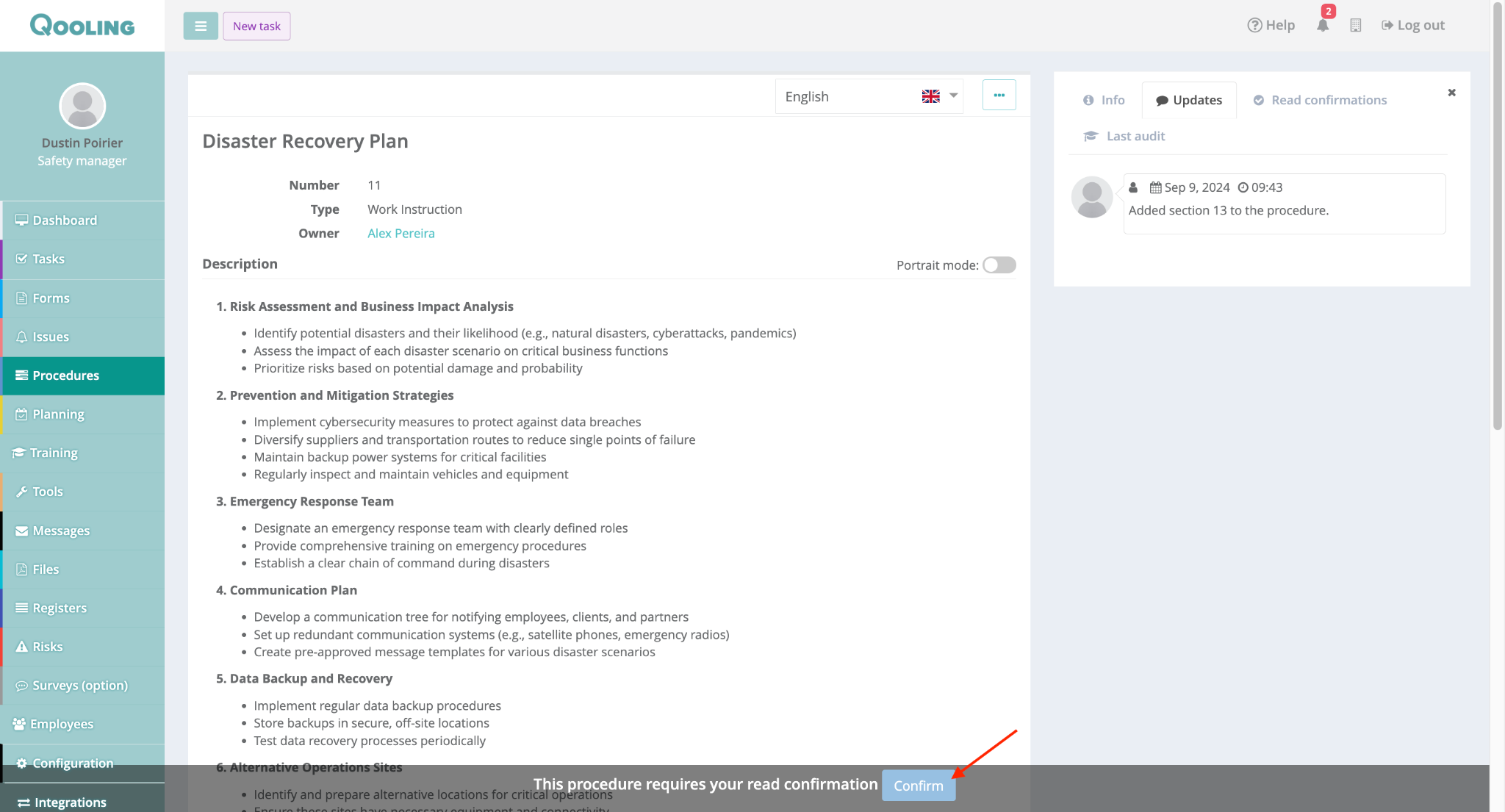
At the bottom of the screen, a banner will appear stating: "This procedure requires your read confirmation."
Click the Confirm button.
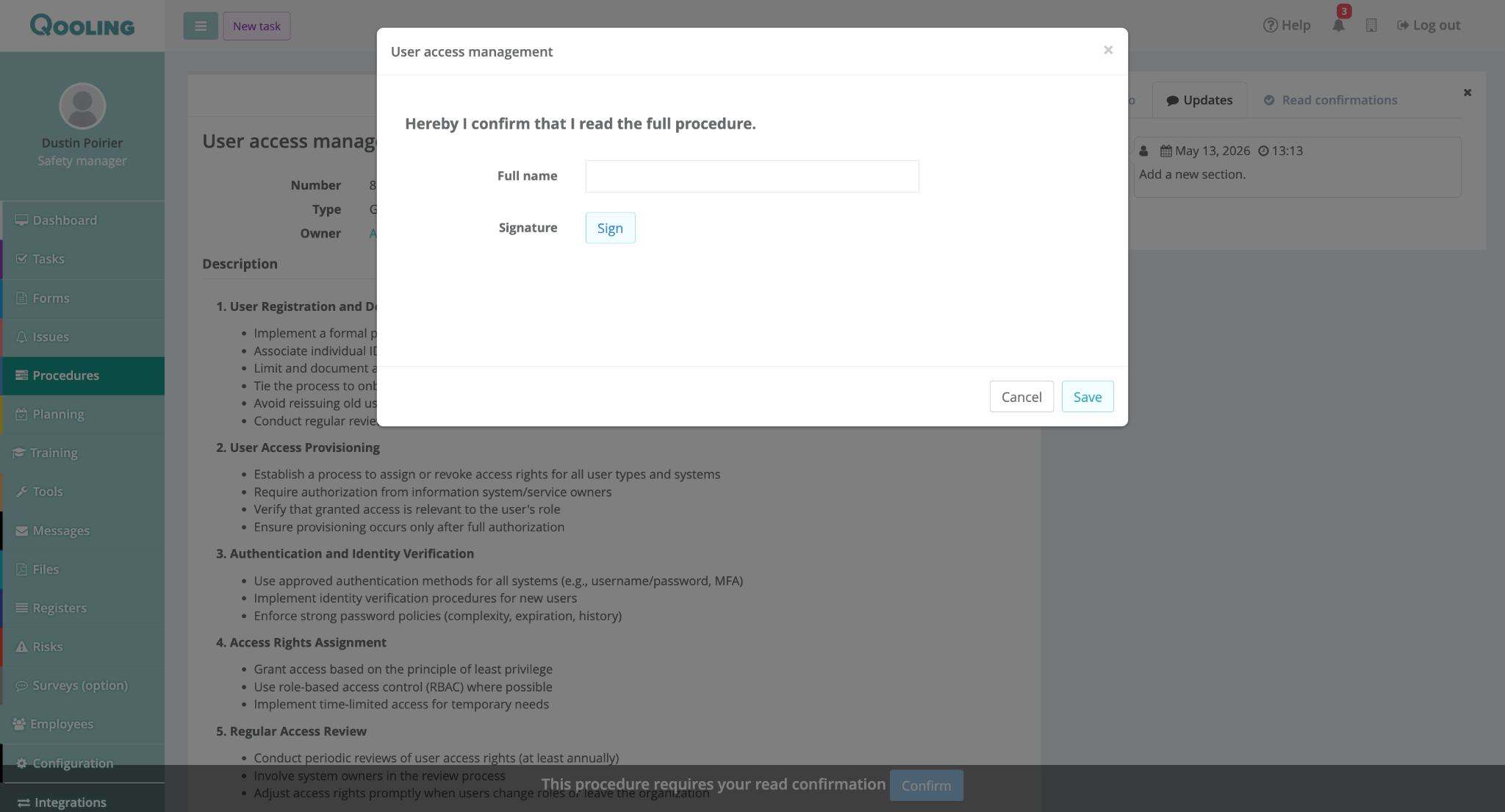
Note: Depending on the configuration of the procedure, clicking "Confirm" may trigger a pop-up with additional questions to verify your understanding.
Once confirmed, the progress bar in the Required tab will update (e.g., to 1/3) until all procedures are confirmed.
Phase 4: Tracking Compliance
Managers can easily monitor who has completed their required reading.
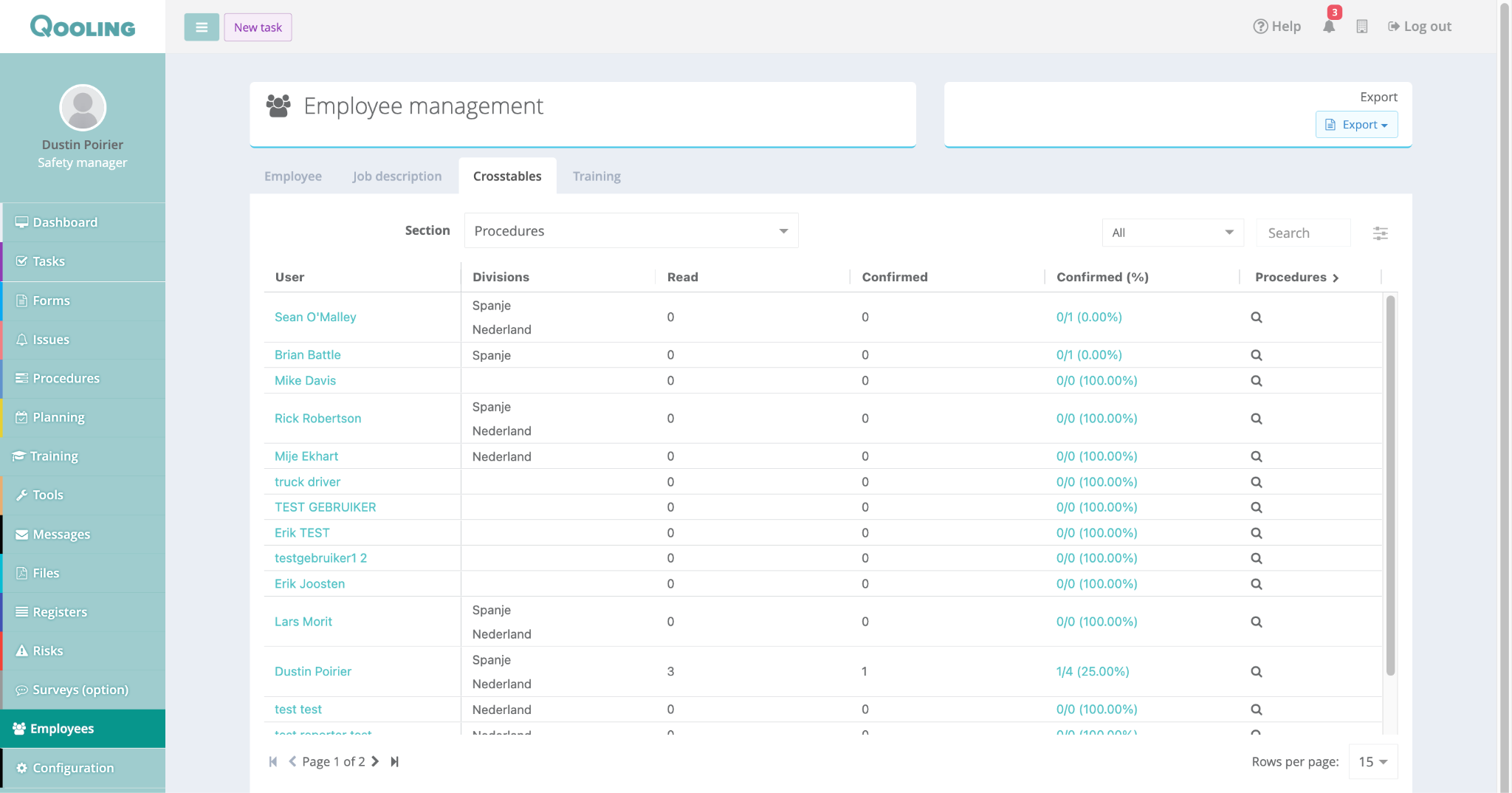
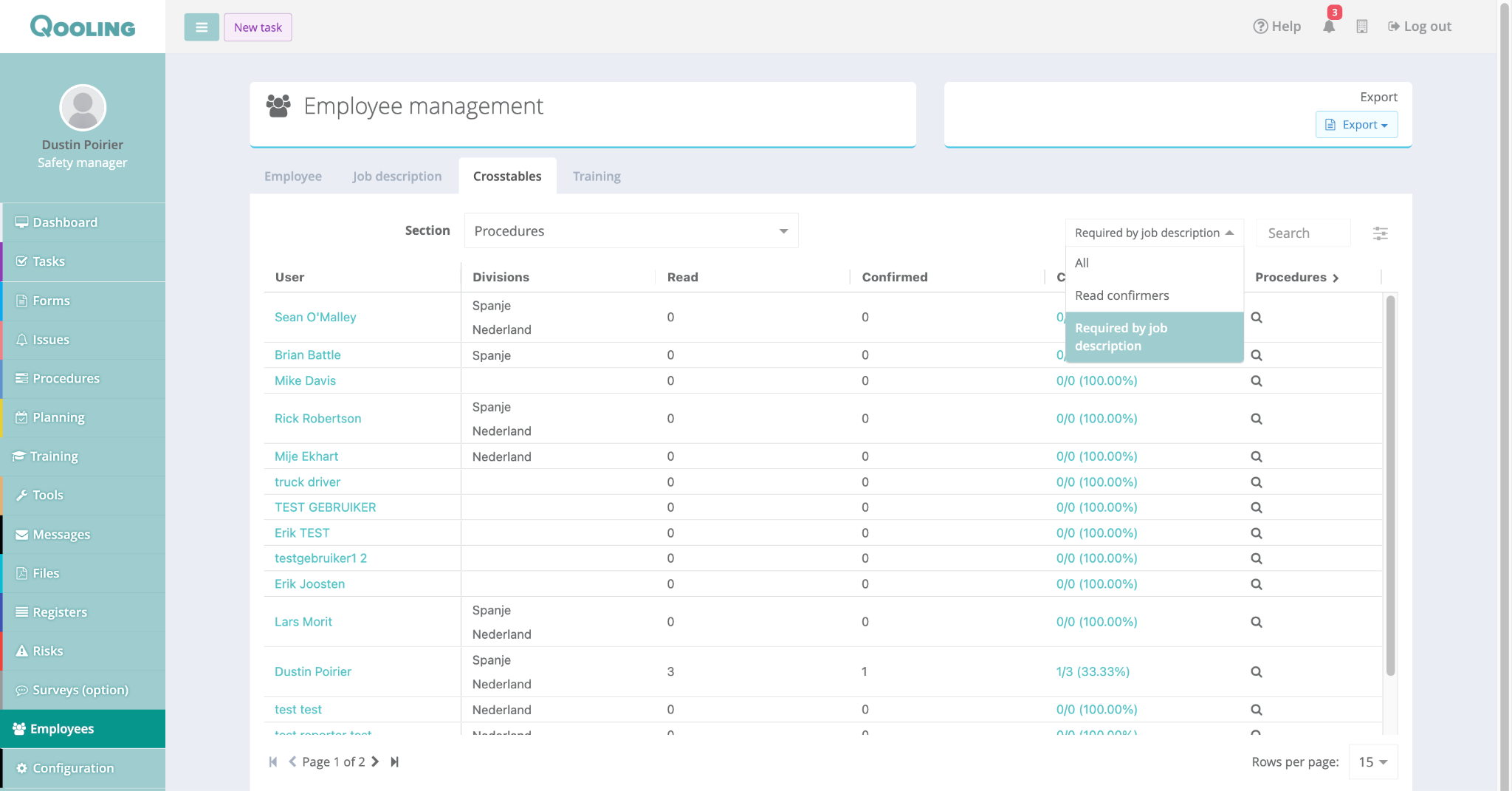
Go to Employees > Crosstables.
Select Procedures from the section dropdown.
Filter by "Required by job description" to see a specific breakdown of compliance percentages for every employee based on their assigned roles.
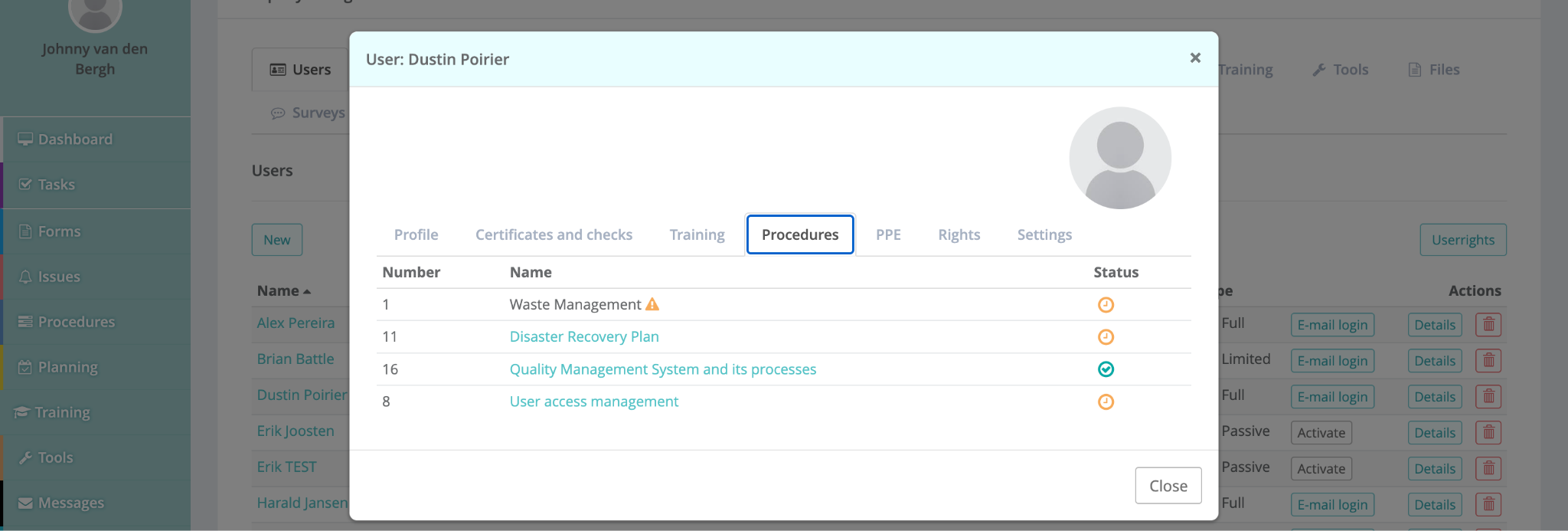
4. Note: if you click on the profile of a user, you can also see a tab called ‘Procedures’ now.
Was this article helpful?
That’s Great!
Thank you for your feedback
Sorry! We couldn't be helpful
Thank you for your feedback
Feedback sent
We appreciate your effort and will try to fix the article