Unlike digital training, in-person training is designed for face-to-face sessions where attendance is verified either via a QR code or manual entry.
Step 1: Create the In-Person Training
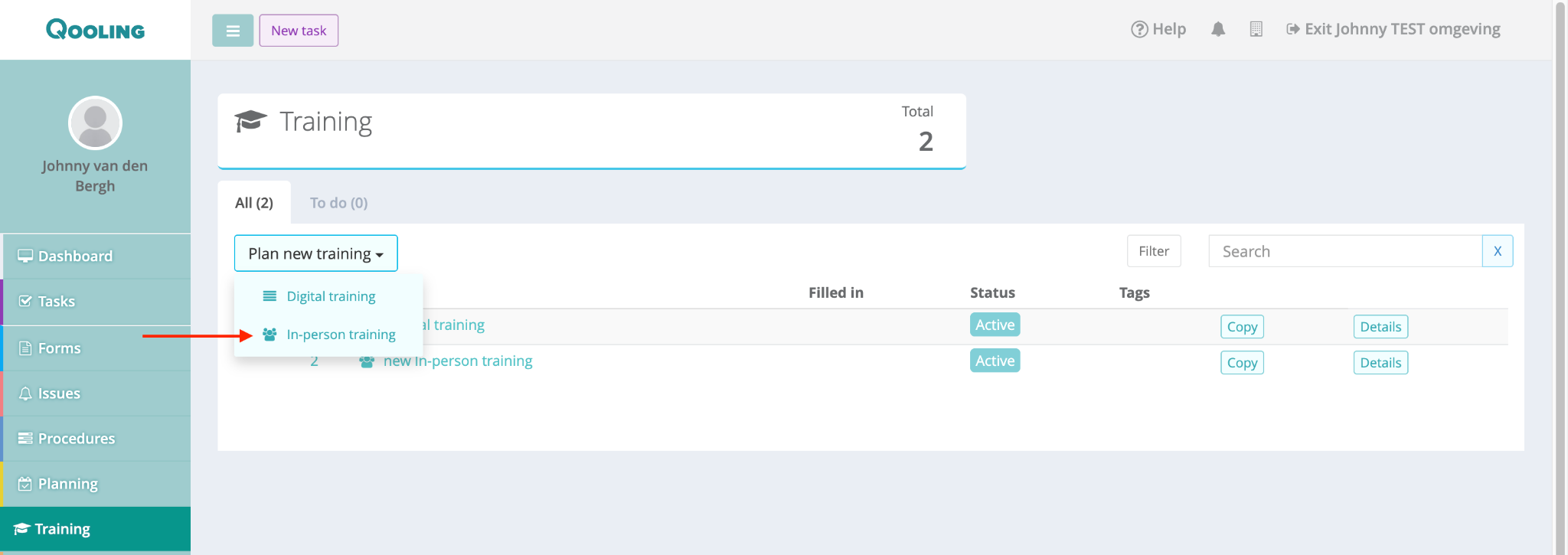
Navigate to the Training section in the left-hand sidebar.
Click the green Plan new training button and select In-person training.
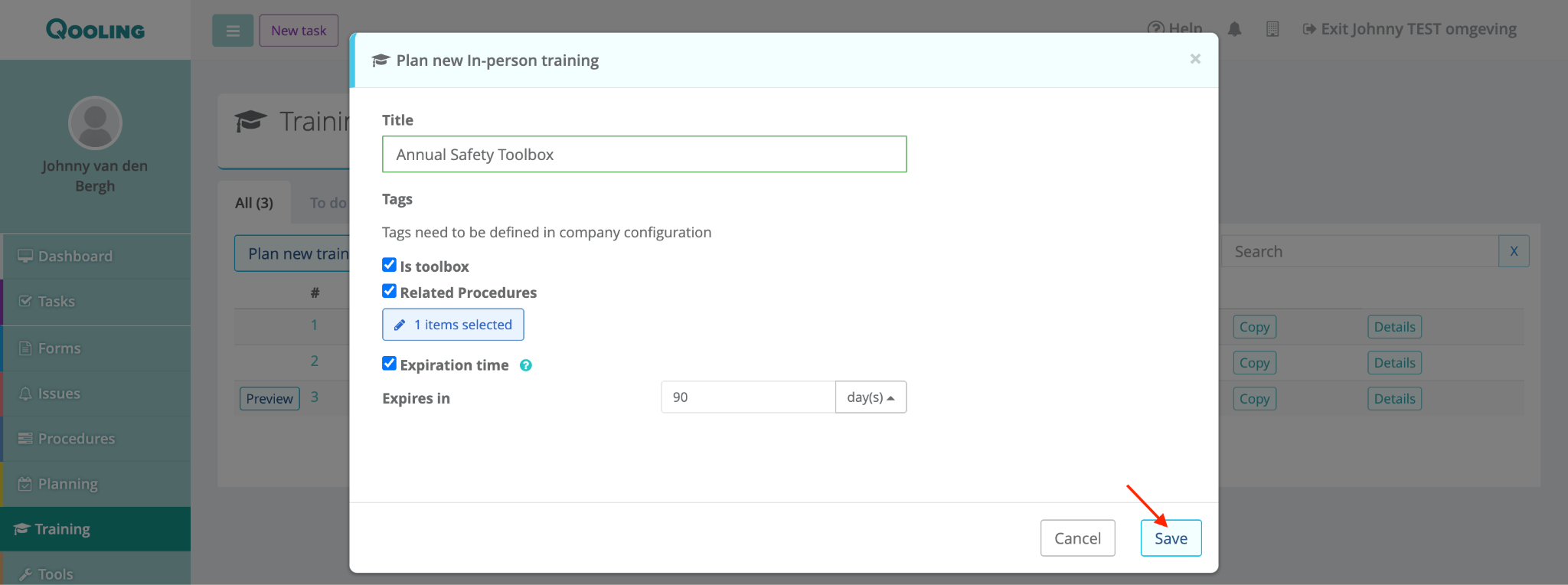
Title: Enter the name of the session (e.g., "Annual Safety Toolbox").
Configure Tags:
Is toolbox: Check this if the session is a short safety meeting.
Related Procedures: Select relevant company documents participants should be familiar with.
- Expiration time: If an expiration period is set (for example, 90 days), the training completed by the user will automatically expire after that time. Once expired, the user can complete the training again.
Click Save.
Step 2: Publish and Prepare for Attendance
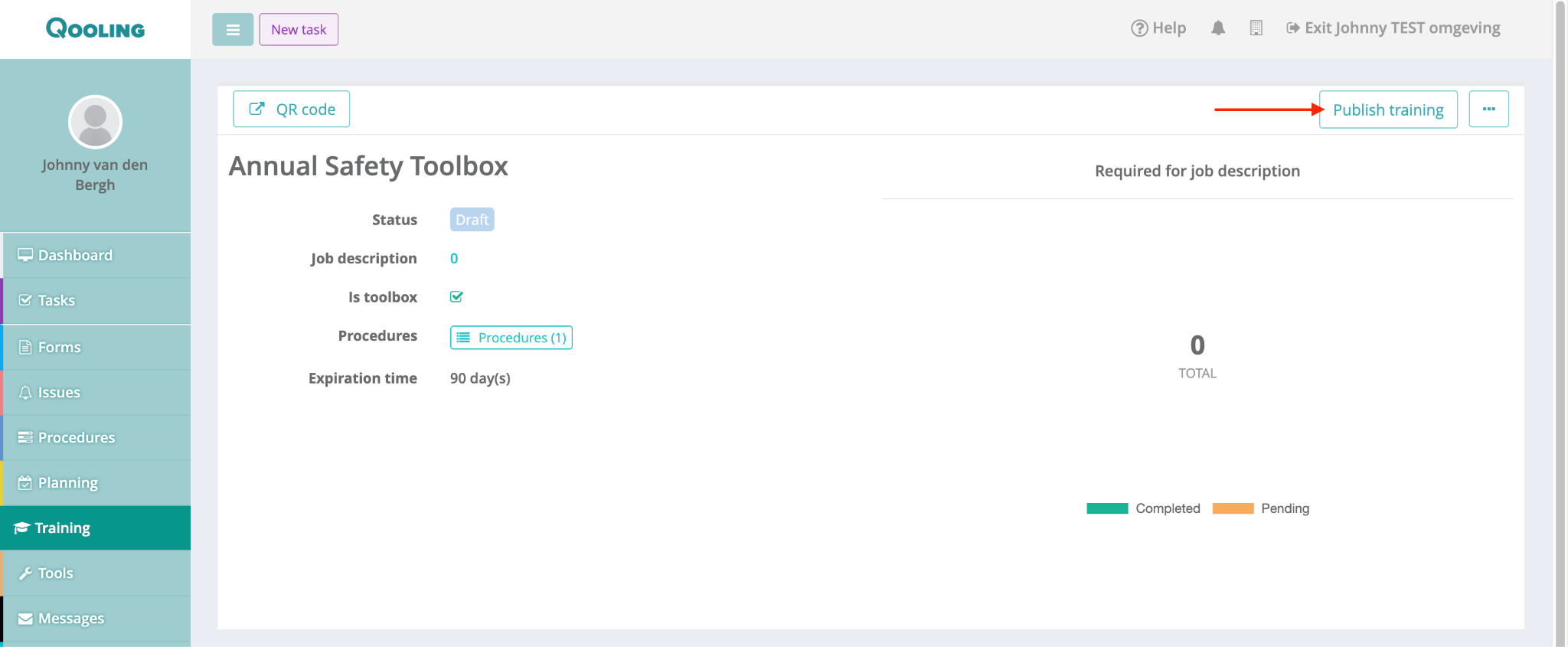
In the training list, click the title of your new training.
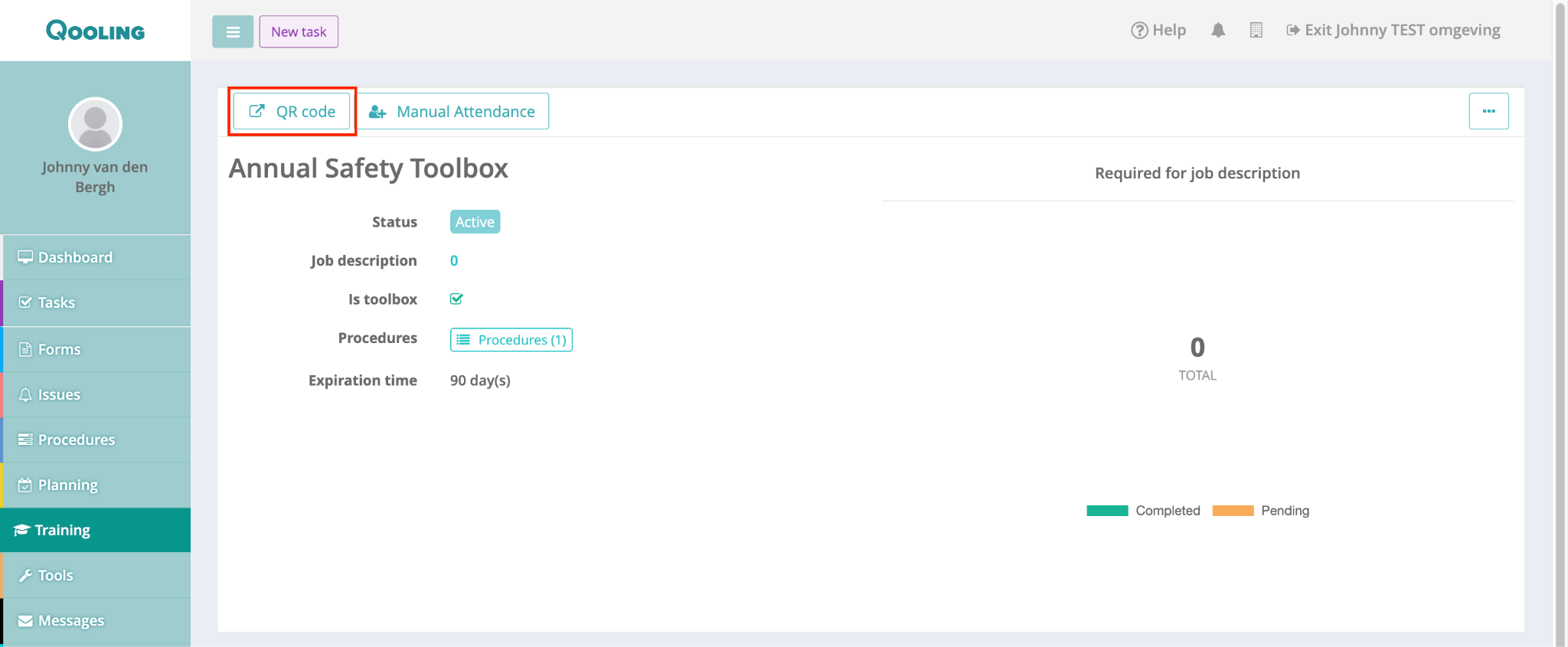
Click the Publish training button in the top right corner and confirm with Yes. The status will change to Active.
QR Code Attendance: Click the QR code button. You can display this on a screen or print it out. When employees scan this, they can enter their name and signature on their own devices to register.
Step 3: Register Manual Attendance
If employees cannot scan the QR code, you can register them manually:
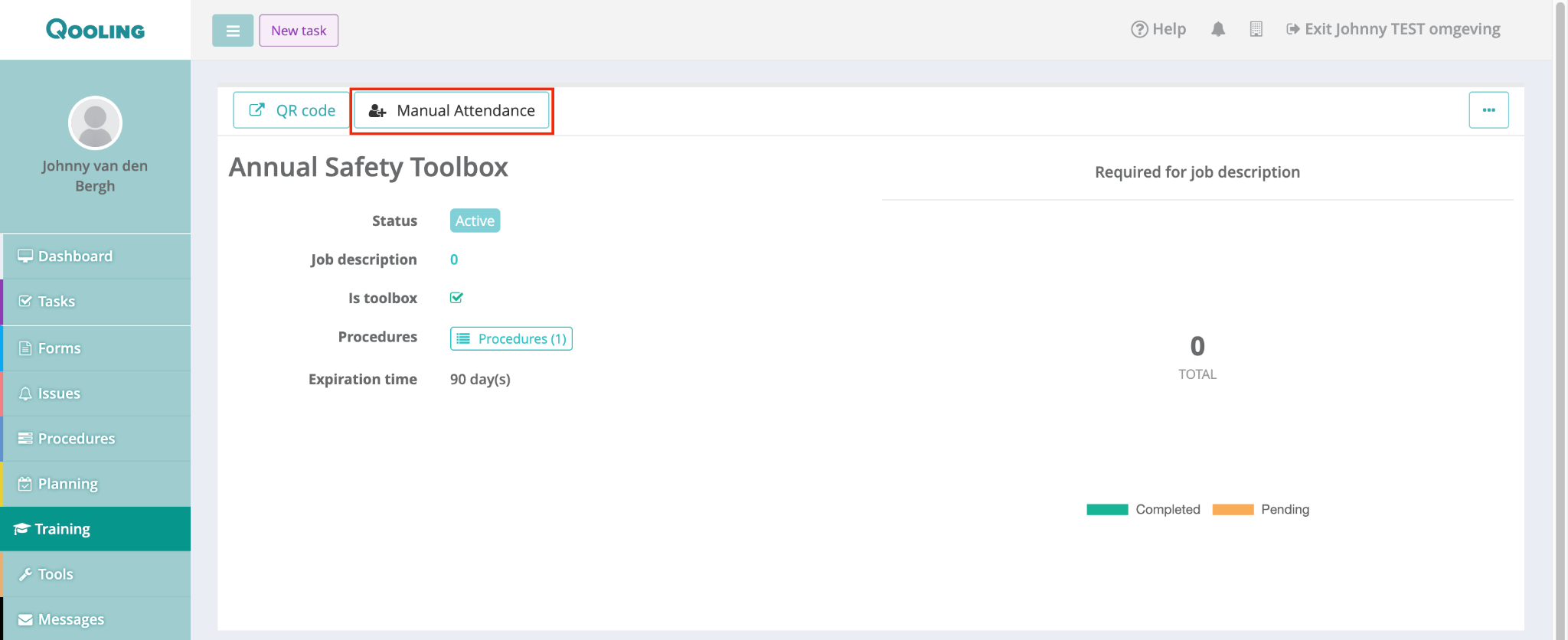
Click the Manual Attendance button at the top of the training page.
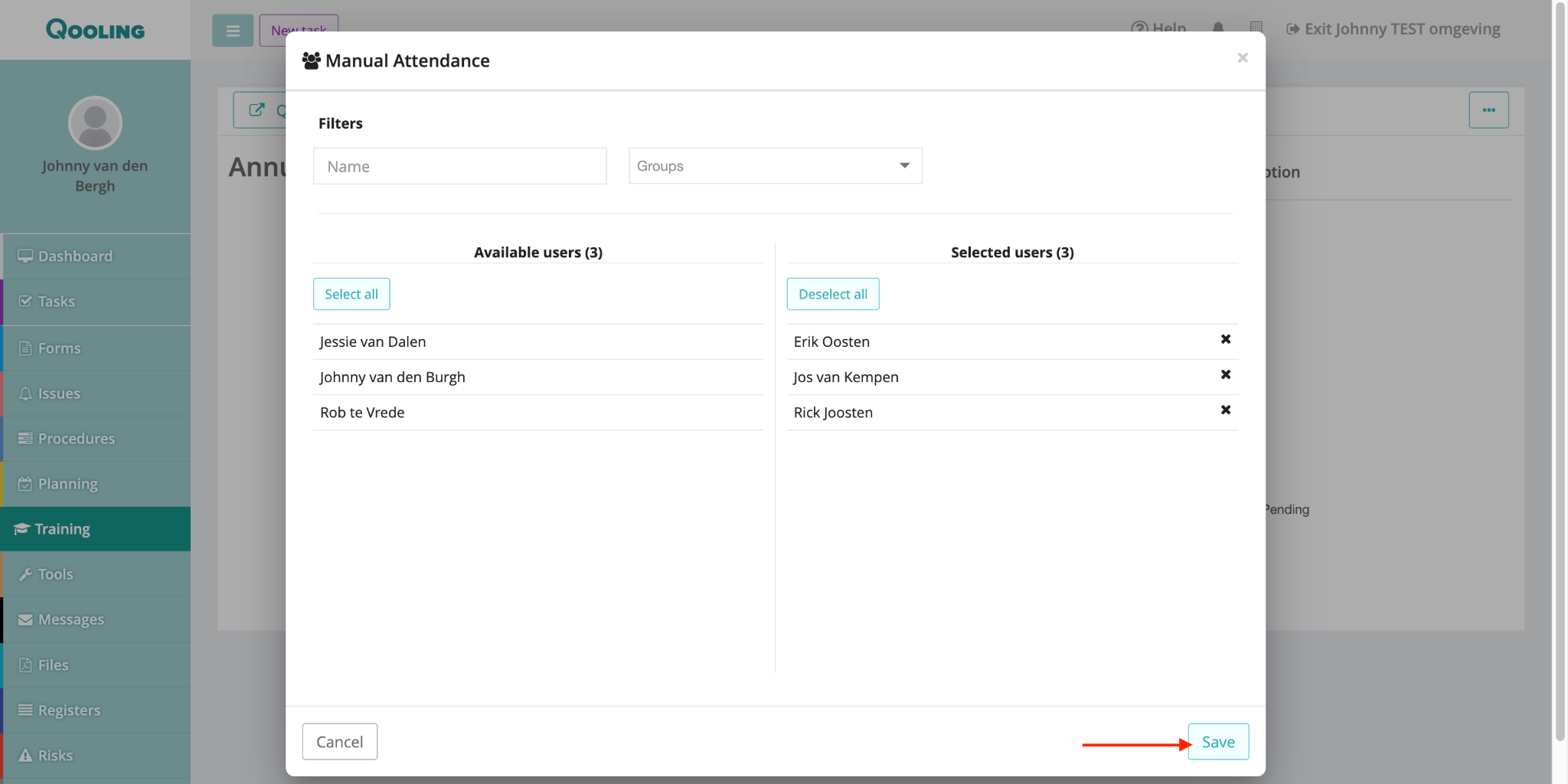
Select the employees from the Available users list to move them to the Selected users list.
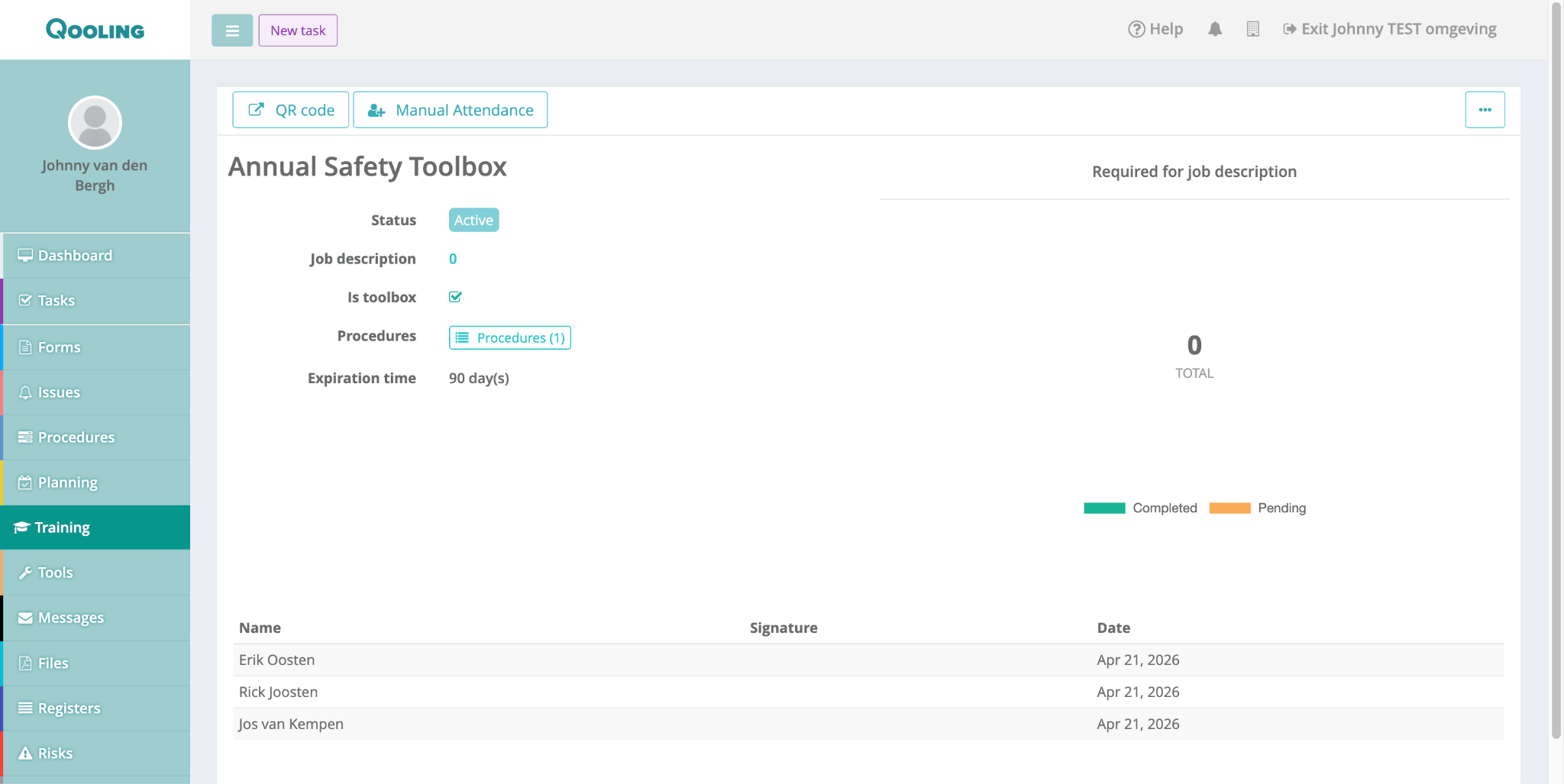
Click Save and then Confirm. The users will now appear in the attendance list at the bottom of the page with the current date.
Step 4: Make Training Mandatory via Job Description
To ensure specific roles are required to attend this session:
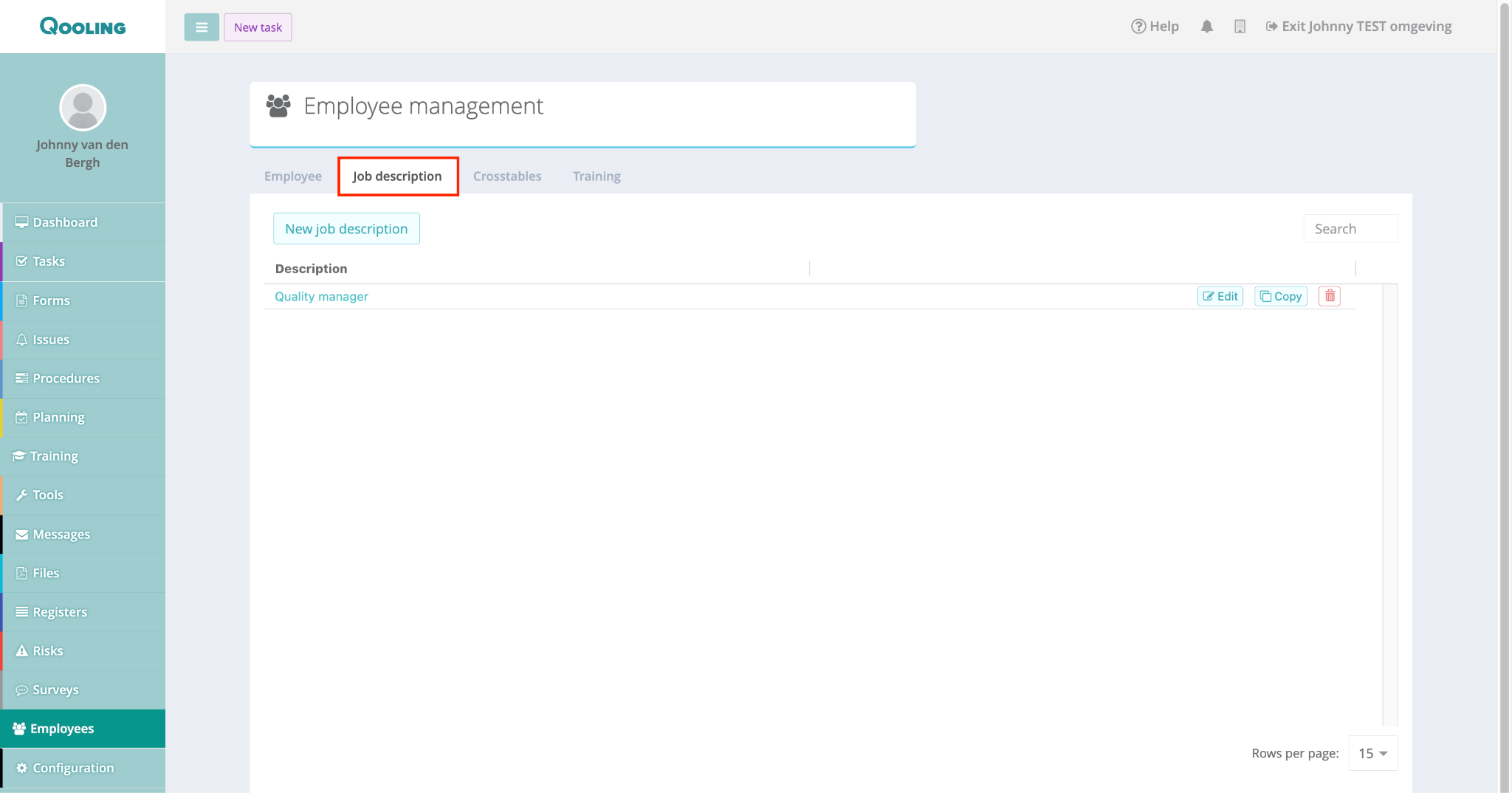
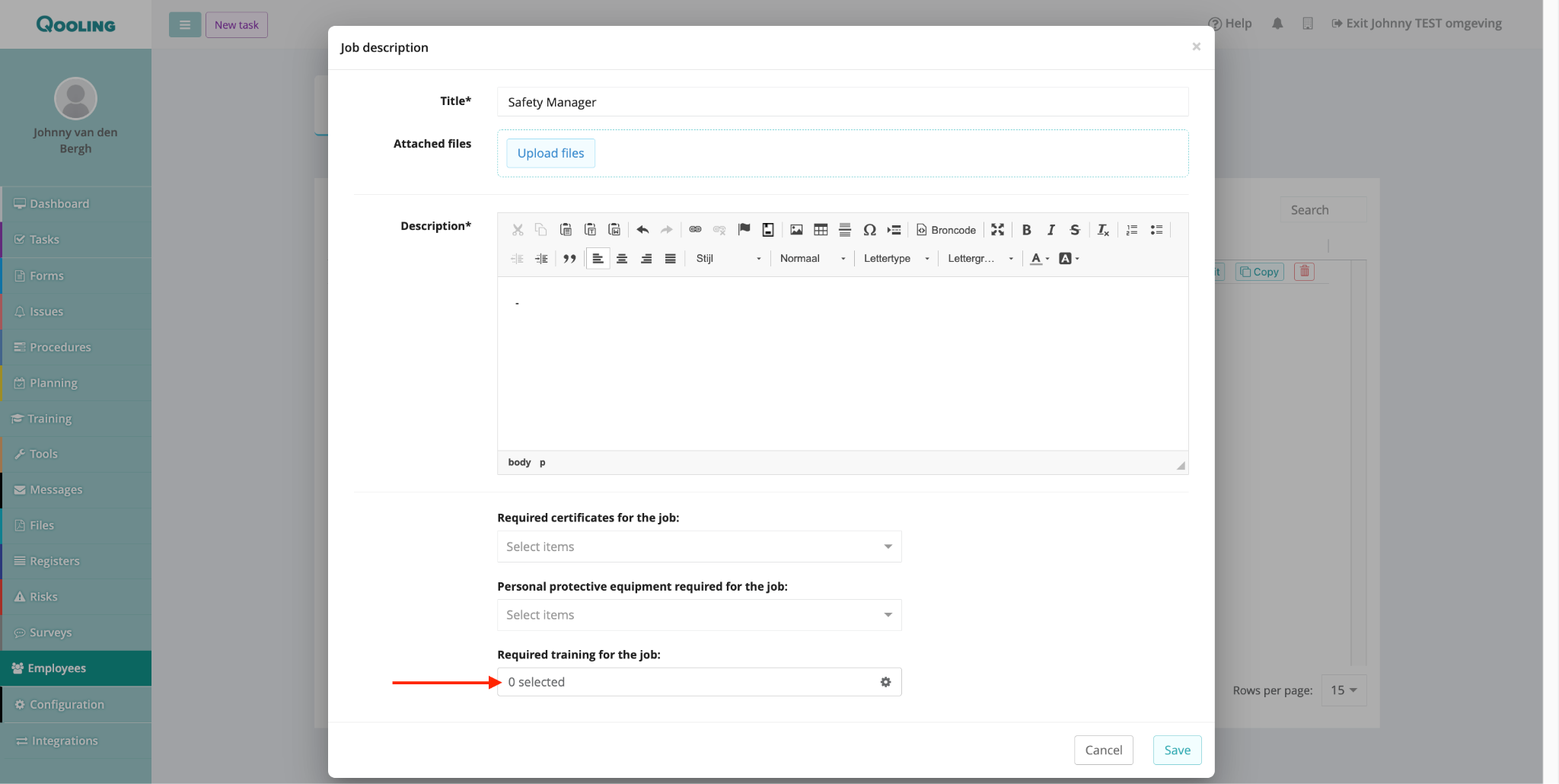
Go to Employees > Job description.
Click Edit on the relevant role (e.g., "Quality Manager") or create a new job description.
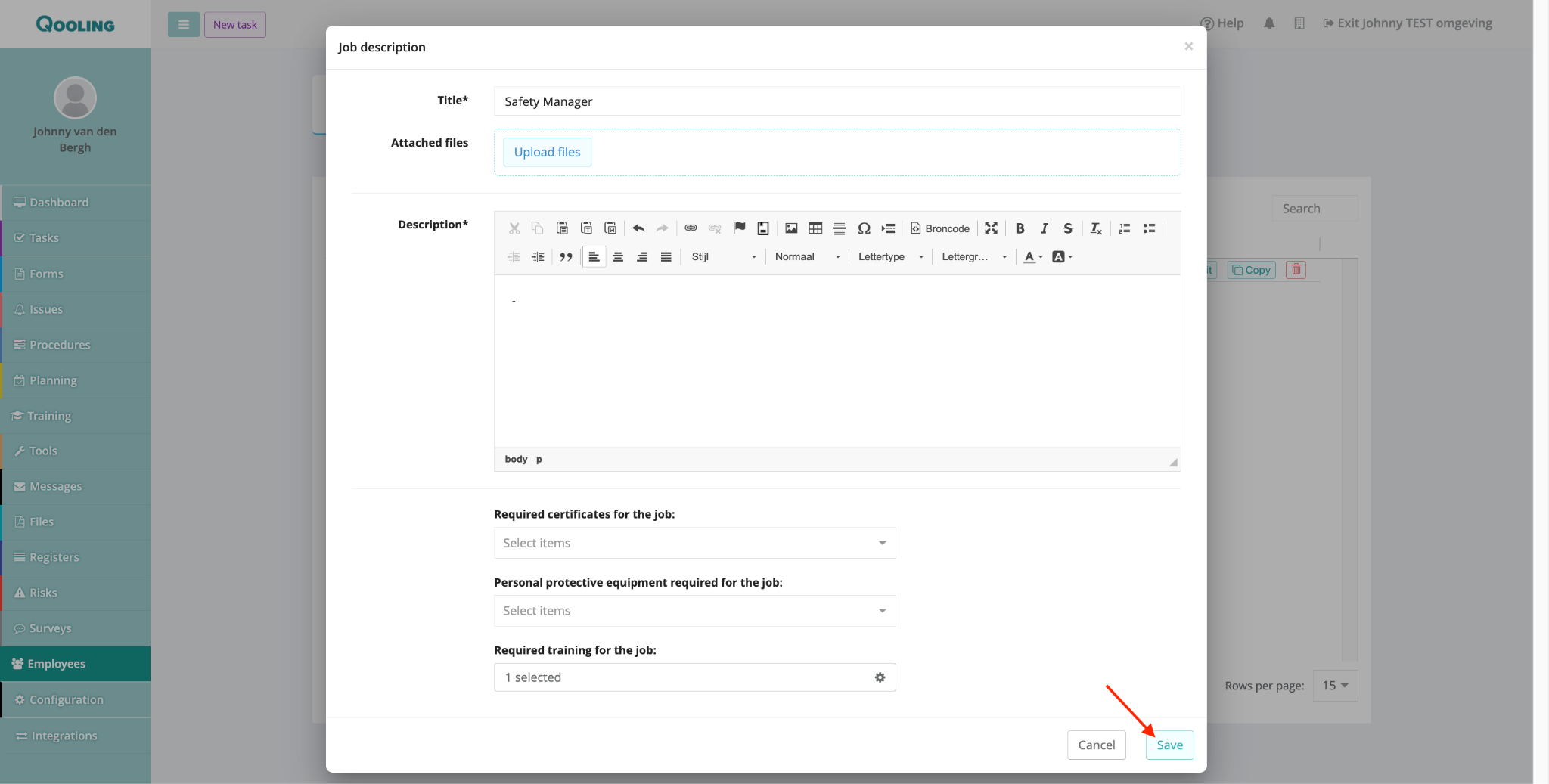
Scroll to Required training for the job and click the input field.
Select your training(s) and click Confirm, then Save the job description.
Step 5: Monitoring Completion
Once linked to a job description, you can track compliance directly on the training page:
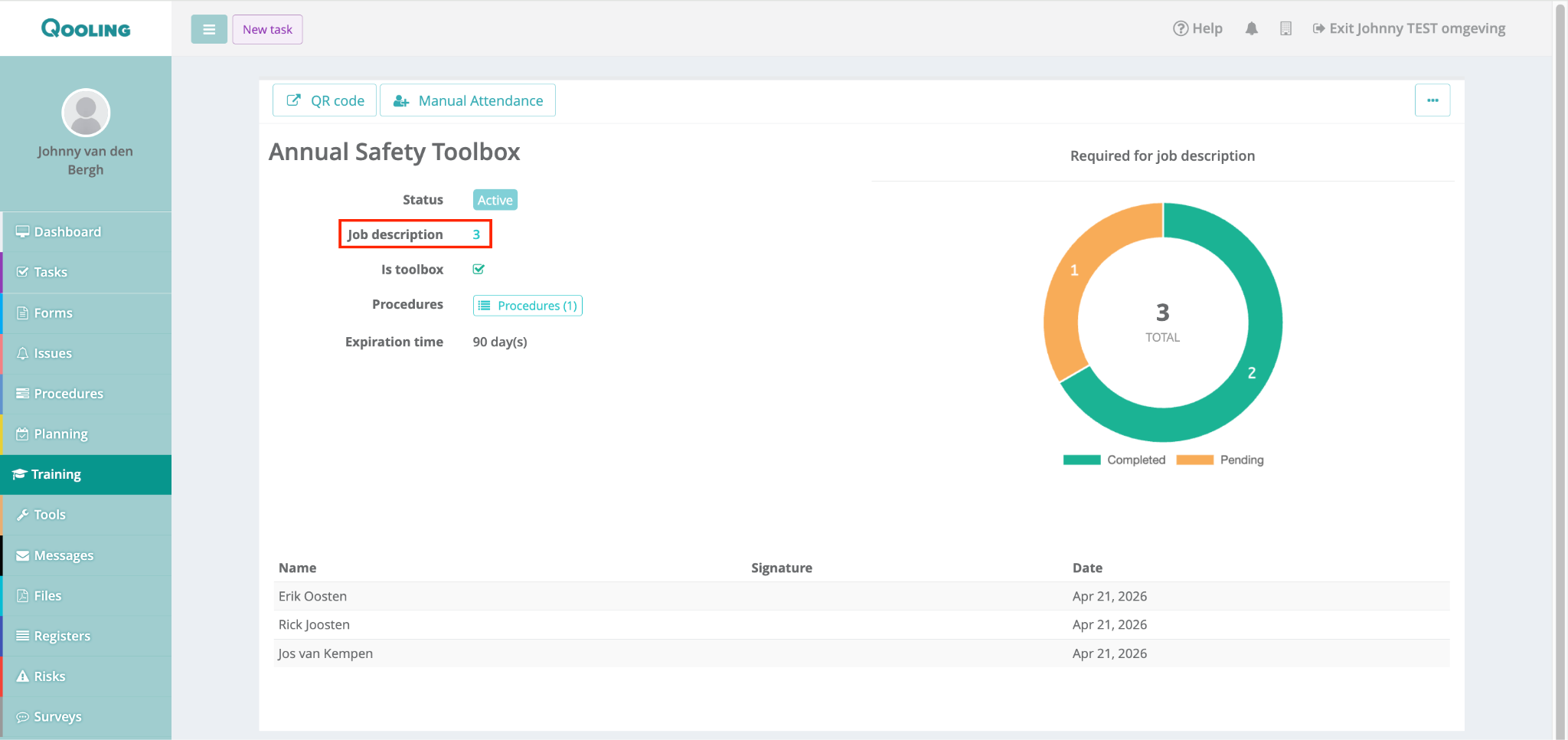
The Chart: A doughnut chart on the right shows how many people have Completed vs. are still Pending.
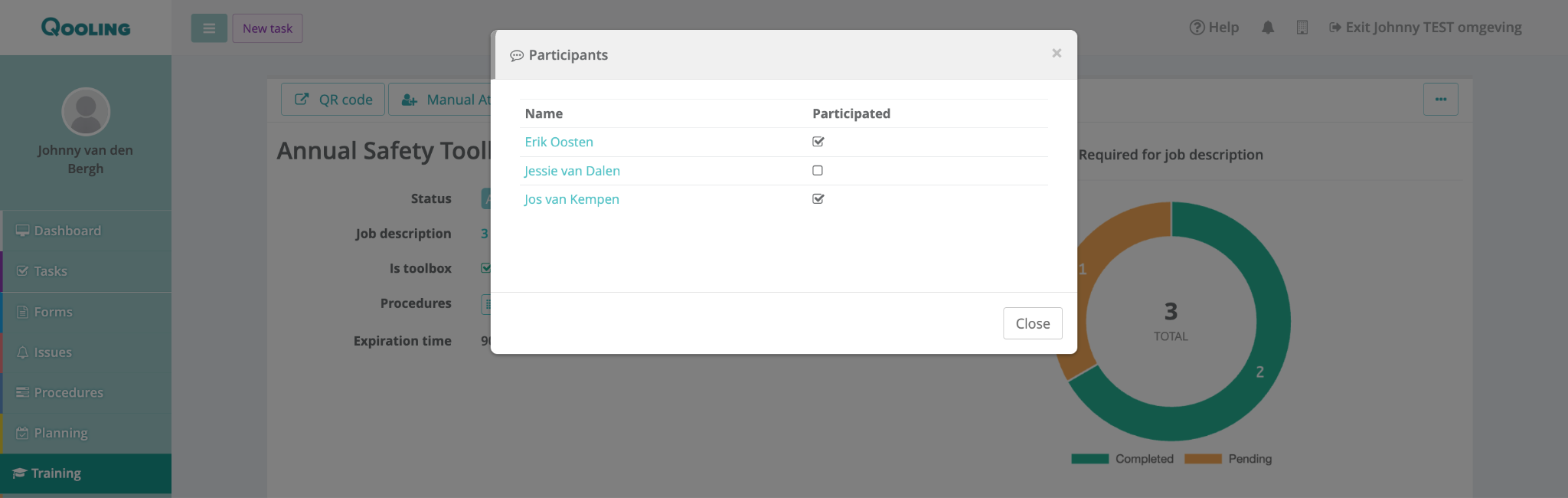
The "Required for" list: Click the number next to Job description in the summary.
A pop-up will appear showing exactly which employees are required to attend based on their role and whether they have already participated.
Was this article helpful?
That’s Great!
Thank you for your feedback
Sorry! We couldn't be helpful
Thank you for your feedback
Feedback sent
We appreciate your effort and will try to fix the article