Linking a training module to a Job Description ensures that the requirement is automatically tracked for specific employees based on their function within the company.
Step 1: Create or Edit a Job Description
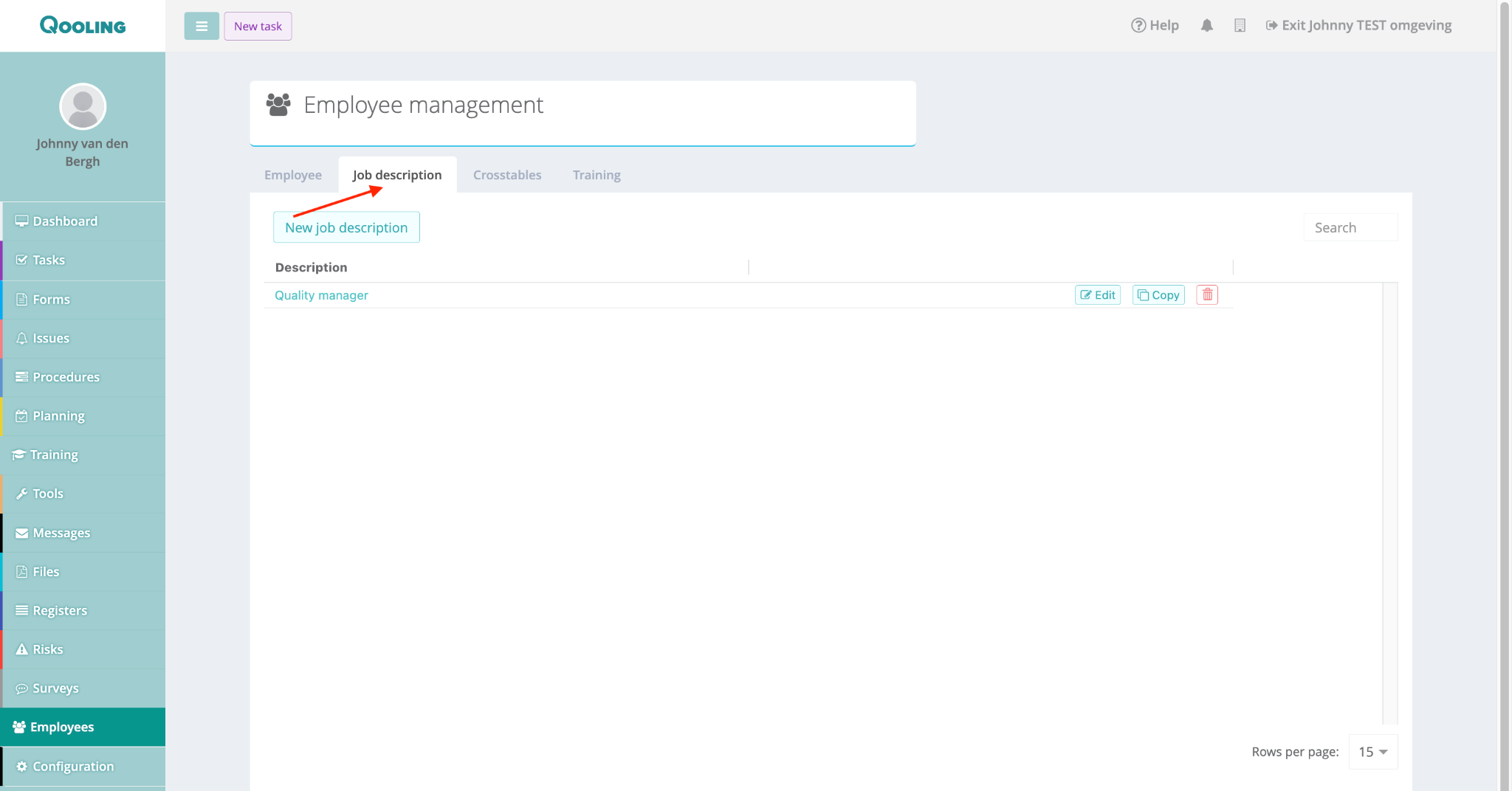
Navigate to Employees in the left-hand sidebar.
Select the Job description tab at the top of the page.
Click New job description (or click Edit on an existing one, such as "Quality Manager").
Fill in the Title and a brief Description of the role.
Step 2: Link the Training to the Job Description
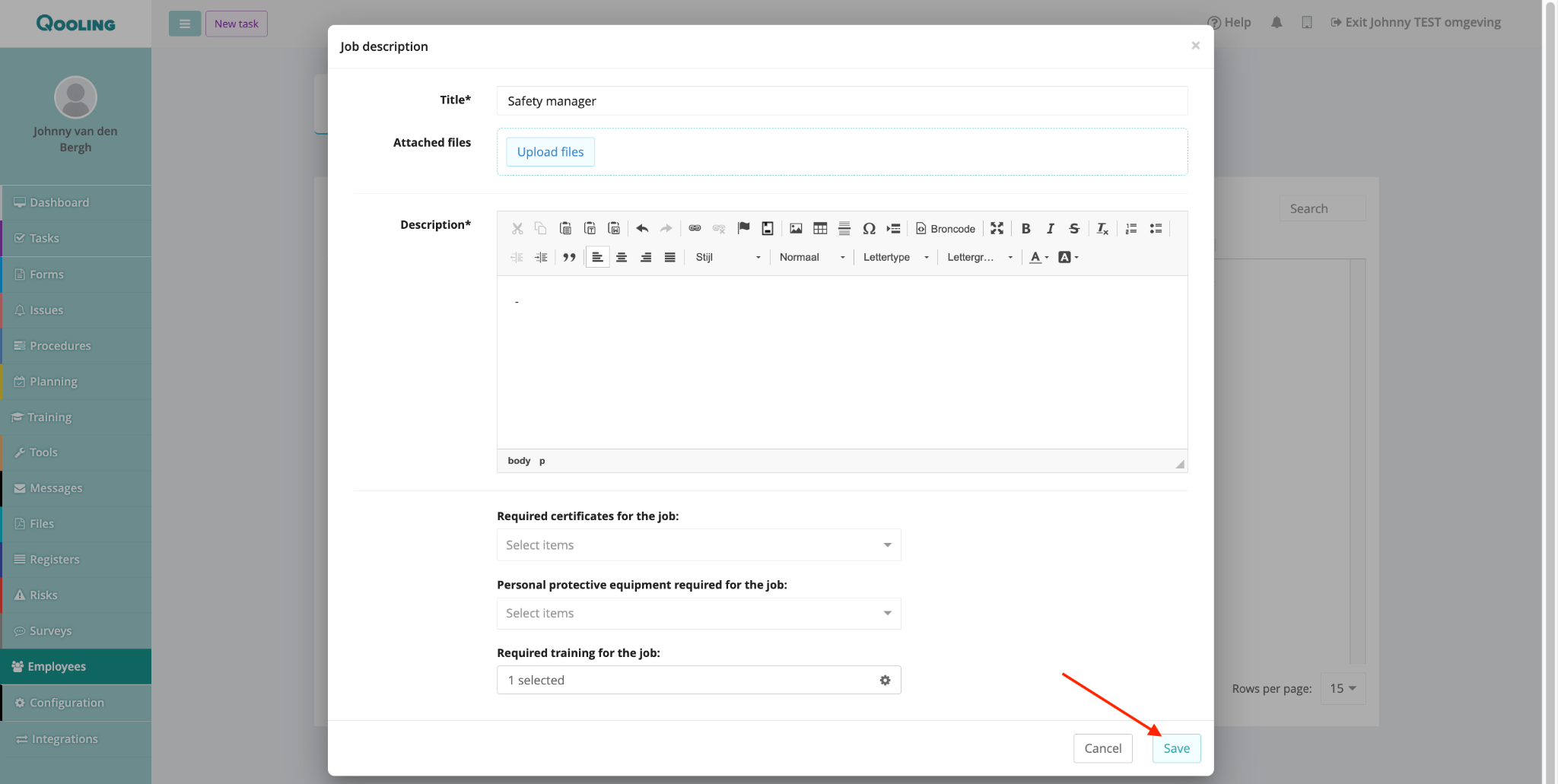
Scroll down to the bottom of the Job Description window to the Required training for the job section.
Click the + (plus icon) or the search bar.
Search for and select your training module (e.g., "new digital training").
Click Confirm and then Save the job description.
Step 3: Assign the Job Description to Employees
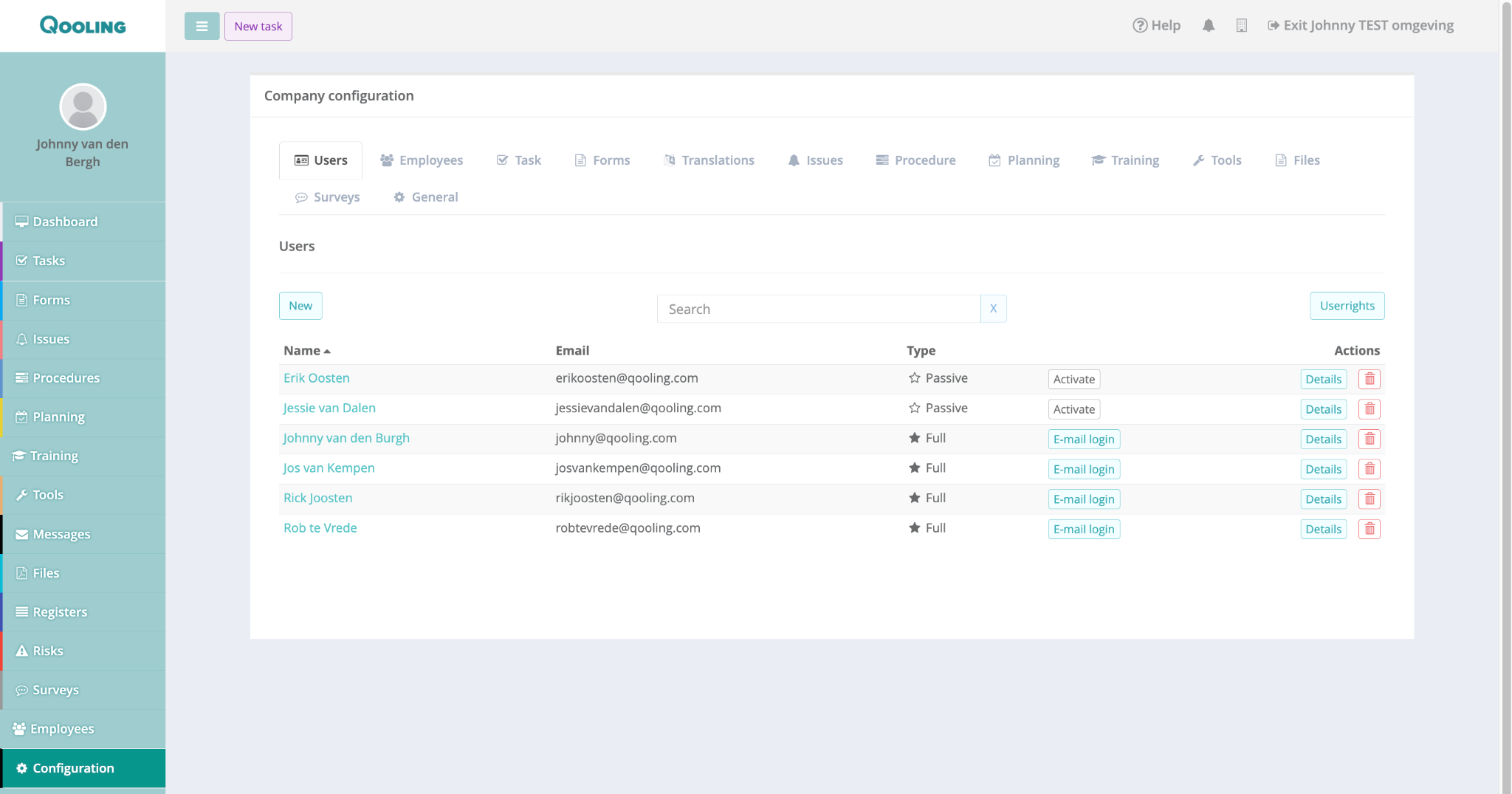
Go to the Employees tab (or Configuration > Users).
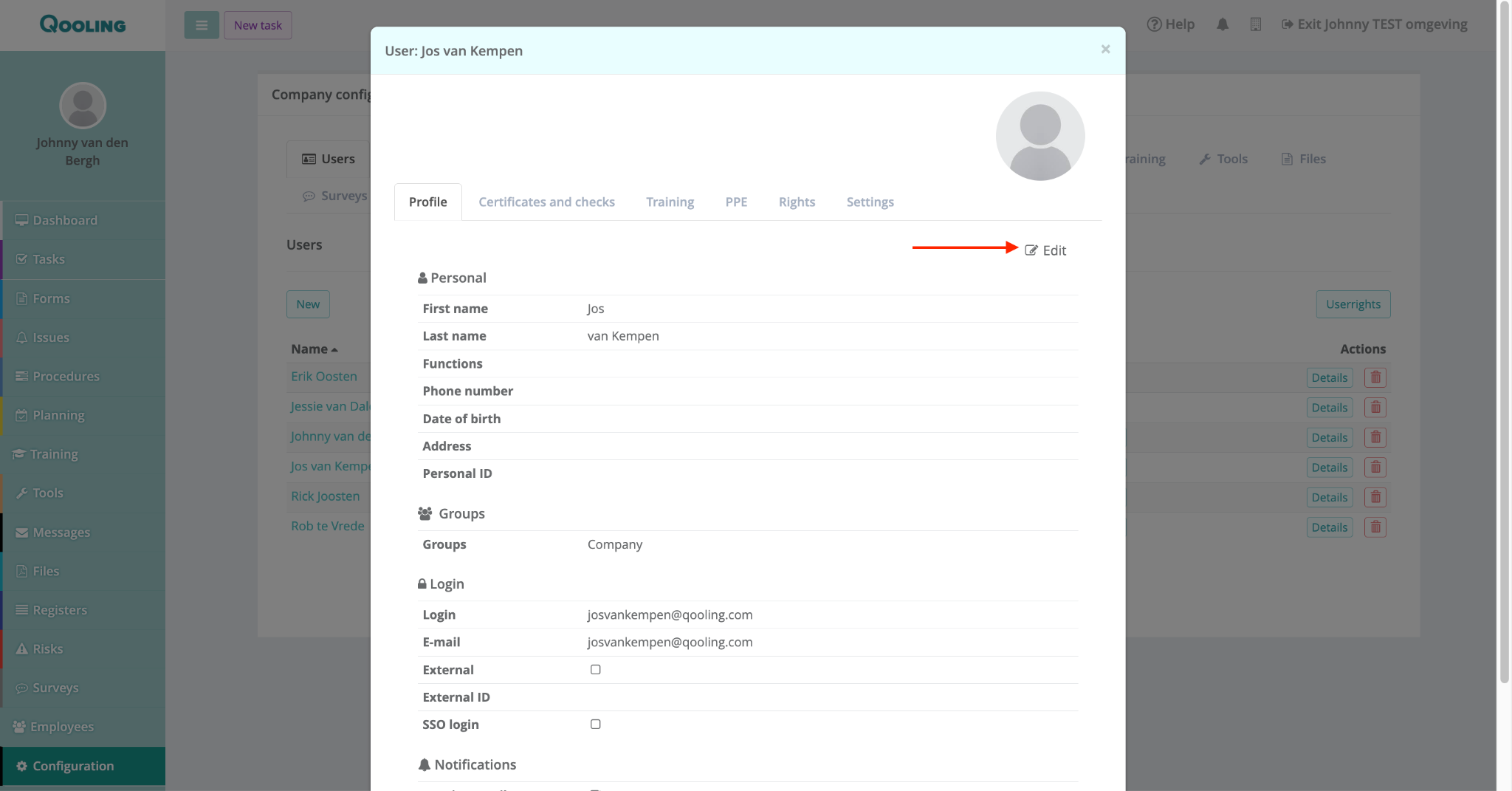
Open the profile of the relevant employee(s).
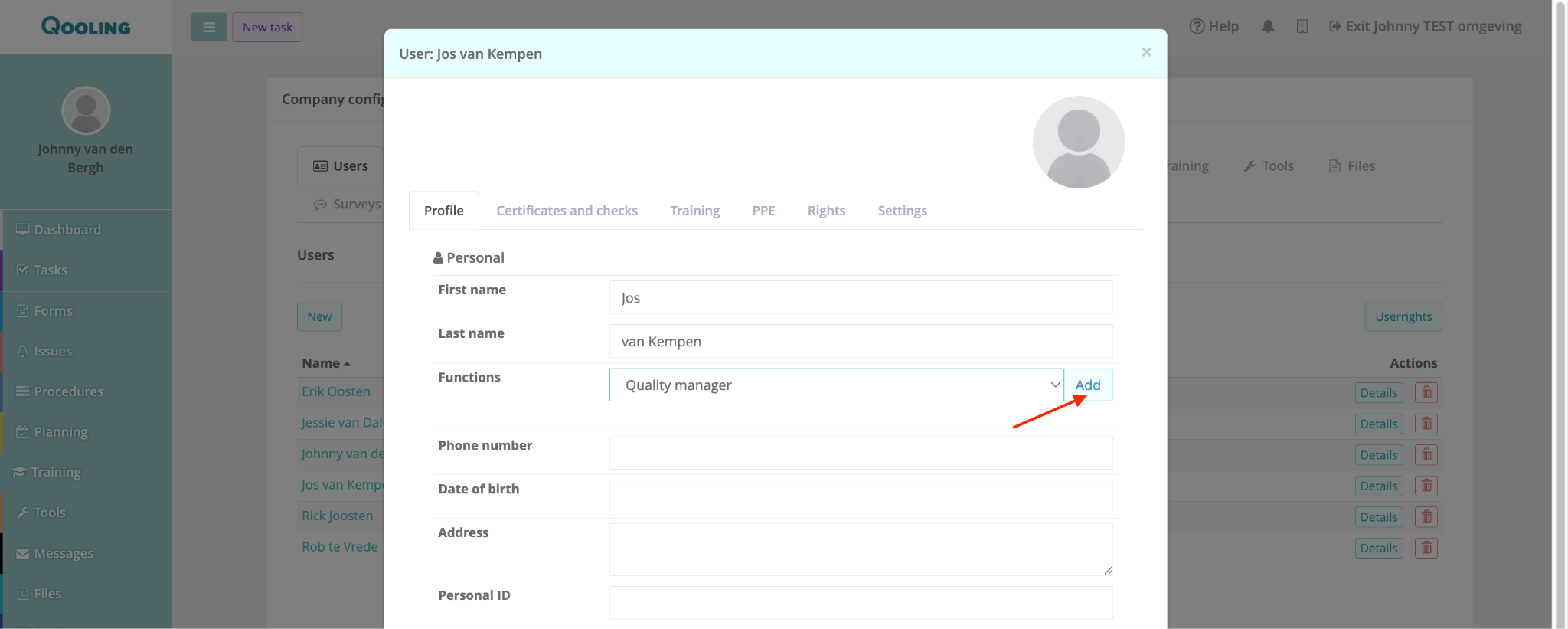
Under the Profile tab, click on the Edit button, look for the Functions field.
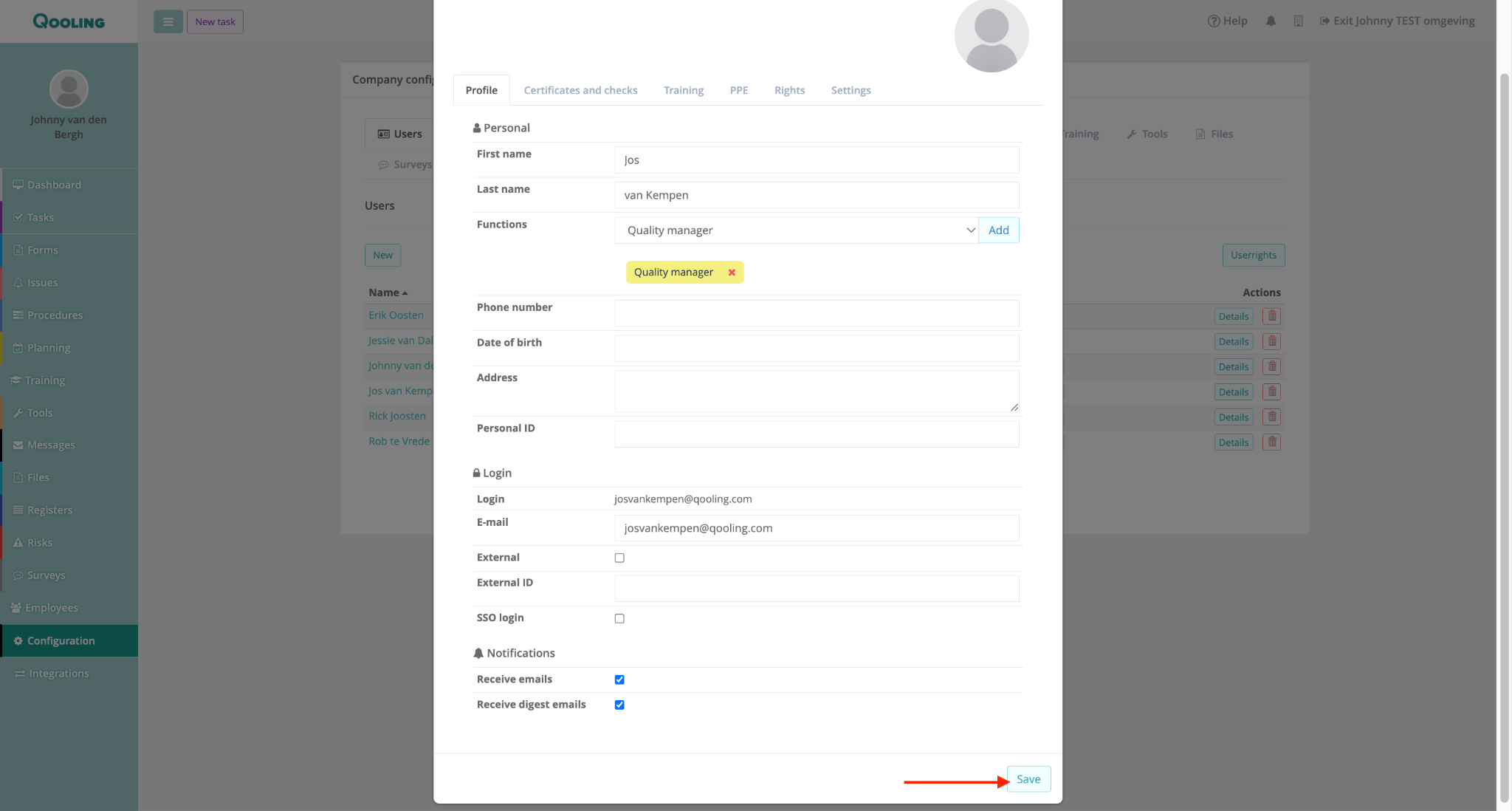
Select the job description you just updated (e.g., "Quality Manager") and click Add.
Click Save.
Step 4: Track Mandatory Completion
Return to the Training section and open your specific training module.
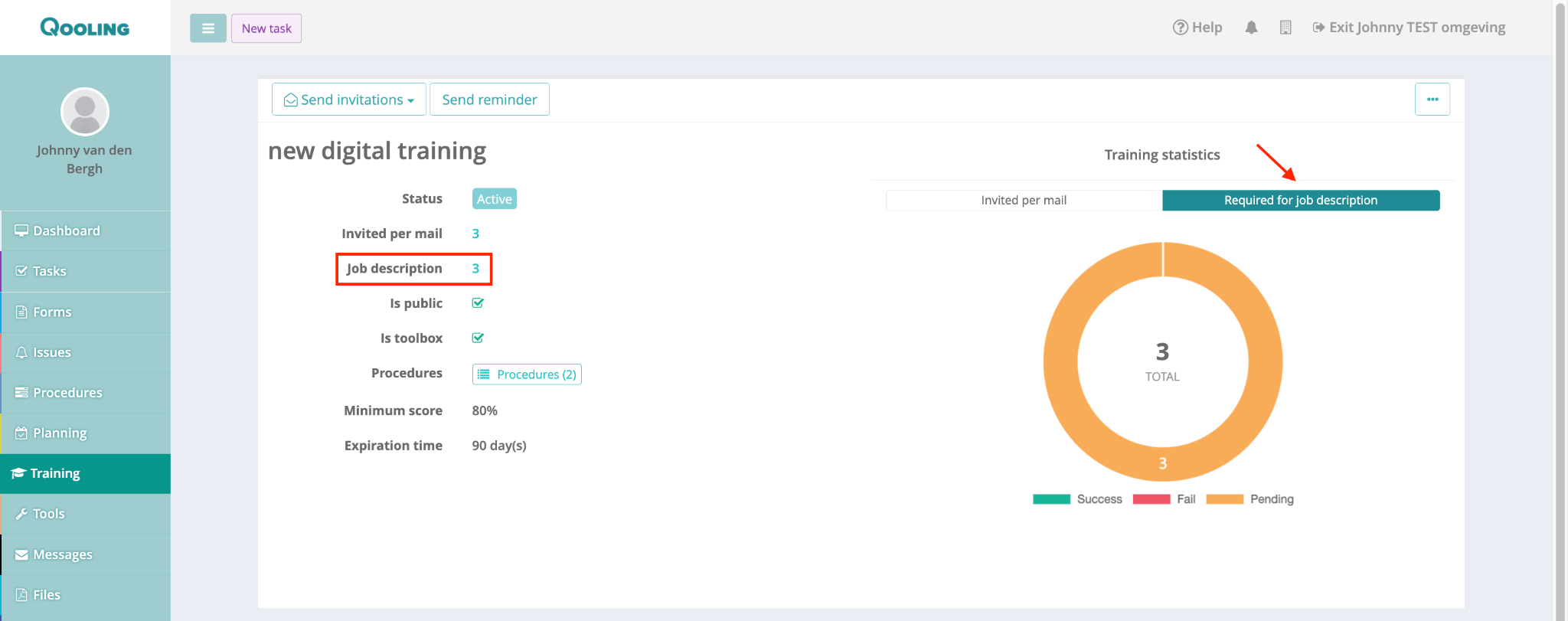
In the Training statistics dashboard, you will now see data in the Required for job description section.
Click on the numbers next to "Job description" or "Invited per mail" to see a detailed list of:
Who is required to take the training.
Who has already participated.
Who still needs a reminder.
Was this article helpful?
That’s Great!
Thank you for your feedback
Sorry! We couldn't be helpful
Thank you for your feedback
Feedback sent
We appreciate your effort and will try to fix the article