The Employees > Training tab acts as your central command center. Because you have linked managers to employees and training to job descriptions, you can now monitor everything at a glance:
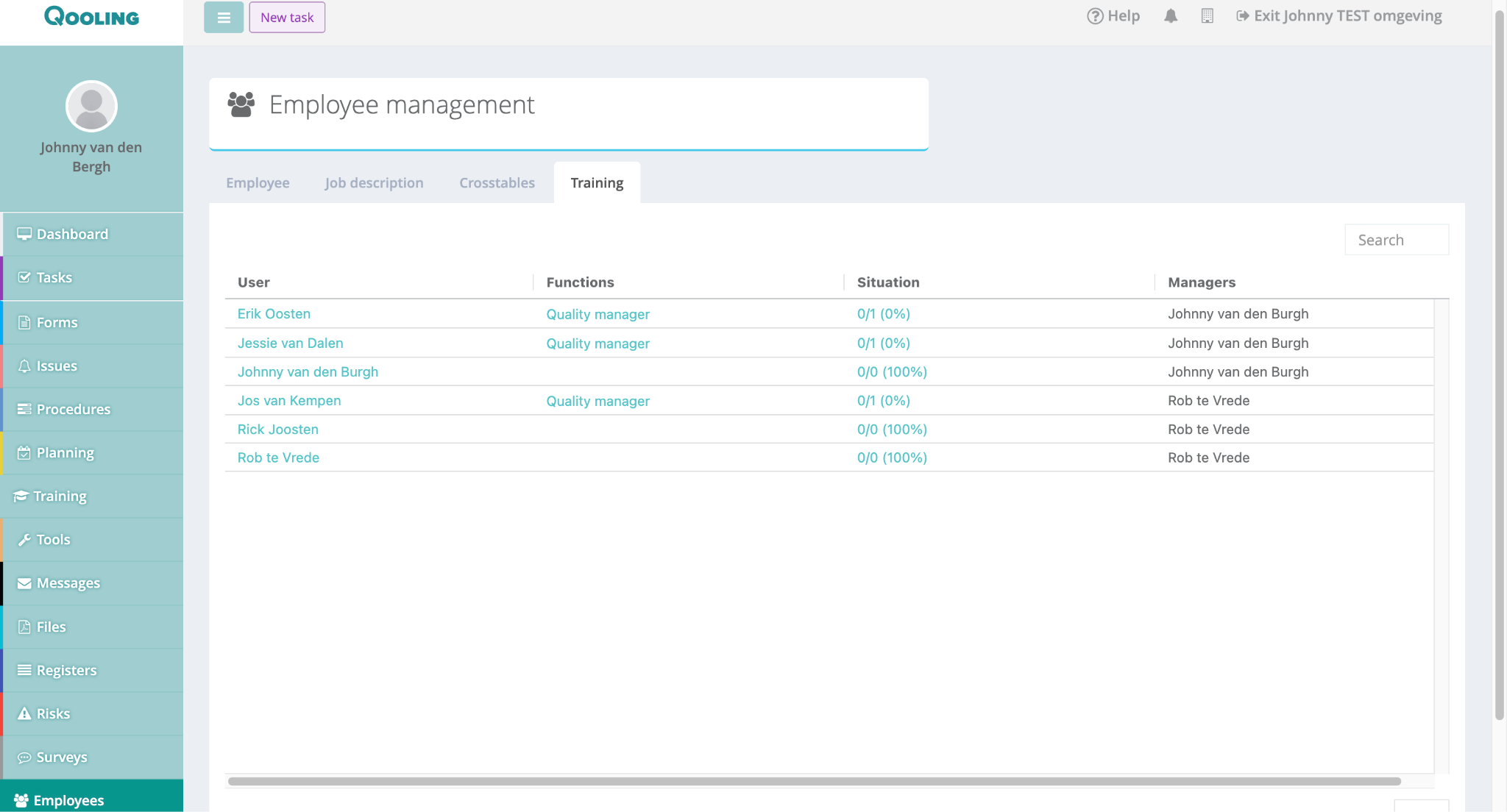
Who is responsible? The Managers column identifies who needs to follow up with a specific employee.
What is required? The Functions column shows the job description that is driving the training requirements.
Are they compliant? The Situation column provides a live status.
The first number is the completed training(s).
The second number is the total required training(s).
The percentage shows the overall progress for that specific person.
Pro-Tip for Managers
If you see an employee with a 0% status, you can click on their name to view their full profile and send them a manual reminder, or simply reach out to the assigned Manager listed in the final column to discuss the progress.
This setup ensures that no one "falls through the cracks" and that the responsibility for safety and quality training is shared across the organization.
Setting Up Managers
To ensure the "Managers" column in your training overview is populated correctly, you must first define your manager(s) in the configuration settings.
Step-by-Step Navigation
Open Configuration: Click the Configuration icon (the gear symbol) at the bottom of the left-hand sidebar.
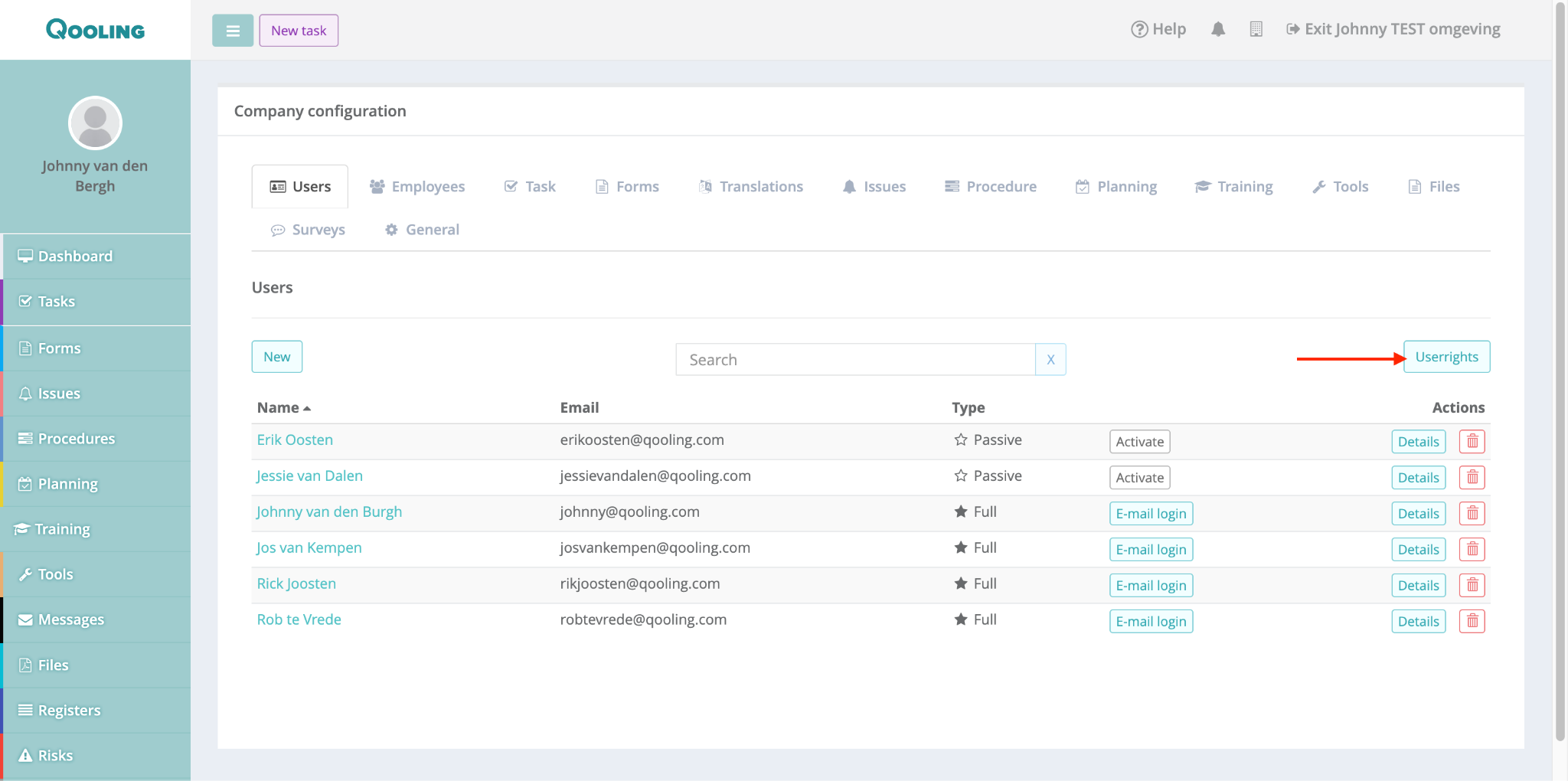
Enter Userrights: Click the Userrights button located at the top right of the user list.
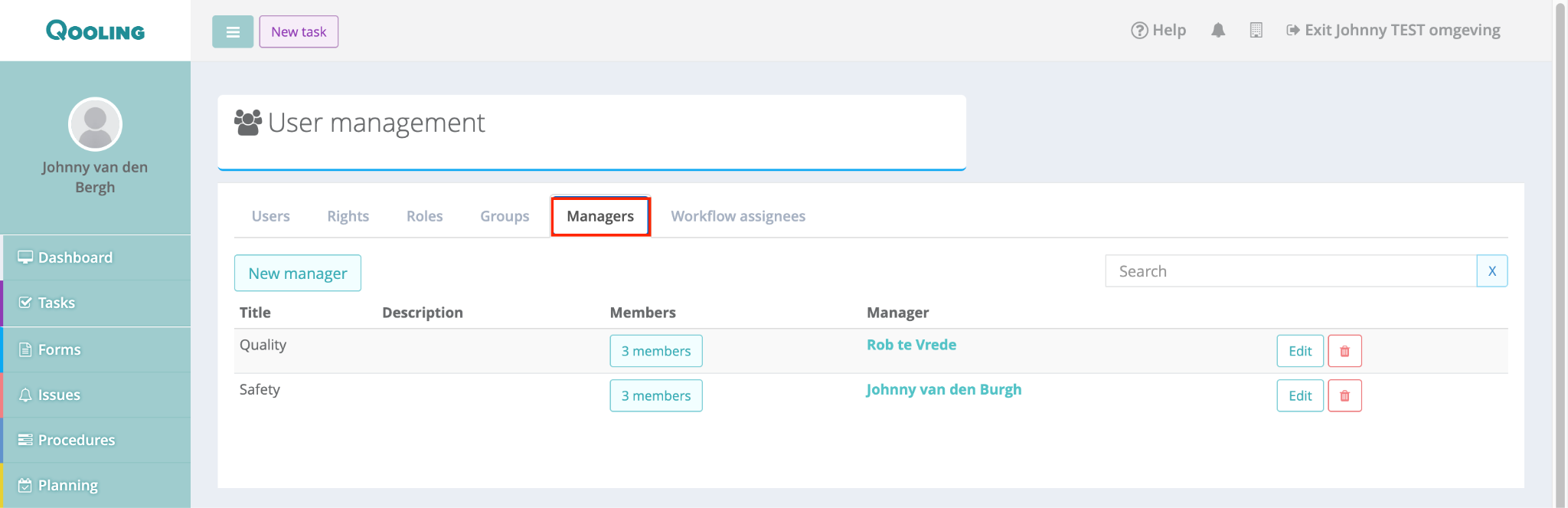
Navigate to Managers: From the top horizontal menu within the User Management screen, click on Managers.
Setting Up a Management Group
Once you are in the Managers section, follow these steps to link managers to their respective employees:
Create a New Group: Click the New manager button.
Assign the Leader: In the Manager dropdown, select the person who is the supervisor.
Assign the Team: Click the Members button.
This opens a list of all available employees.
Select the users who report to the chosen manager.
Click Save on the pop-up.
Finalize: Give the group a Title (e.g., "Logistics Team") and click the final Save button.
How this connects to Training Tracking
Once you have saved these settings, the system automatically links these users. Now, when you navigate to Employees > Training, the Managers column will be automatically filled.
This allows you to:
Filter by Manager: See exactly how a specific team is performing.
Identify Gaps: If an employee has no manager listed, you know you need to go back to Configuration to assign them to a group.
Audit Readiness: Quickly prove to auditors that every employee is being supervised and tracked for their mandatory training.
Was this article helpful?
That’s Great!
Thank you for your feedback
Sorry! We couldn't be helpful
Thank you for your feedback
Feedback sent
We appreciate your effort and will try to fix the article