What is a Risk Control?
A Risk Control is a risk that runs as a workflow. Where a regular risk register entry is a single
line in a list, a Risk Control moves through stages, for example Identification, then Mitigation,
then Monitor. Each stage has its own form and its own responsible people, and the entry only
moves forward once the current stage is completed. This way a risk is genuinely followed up
rather than just logged.
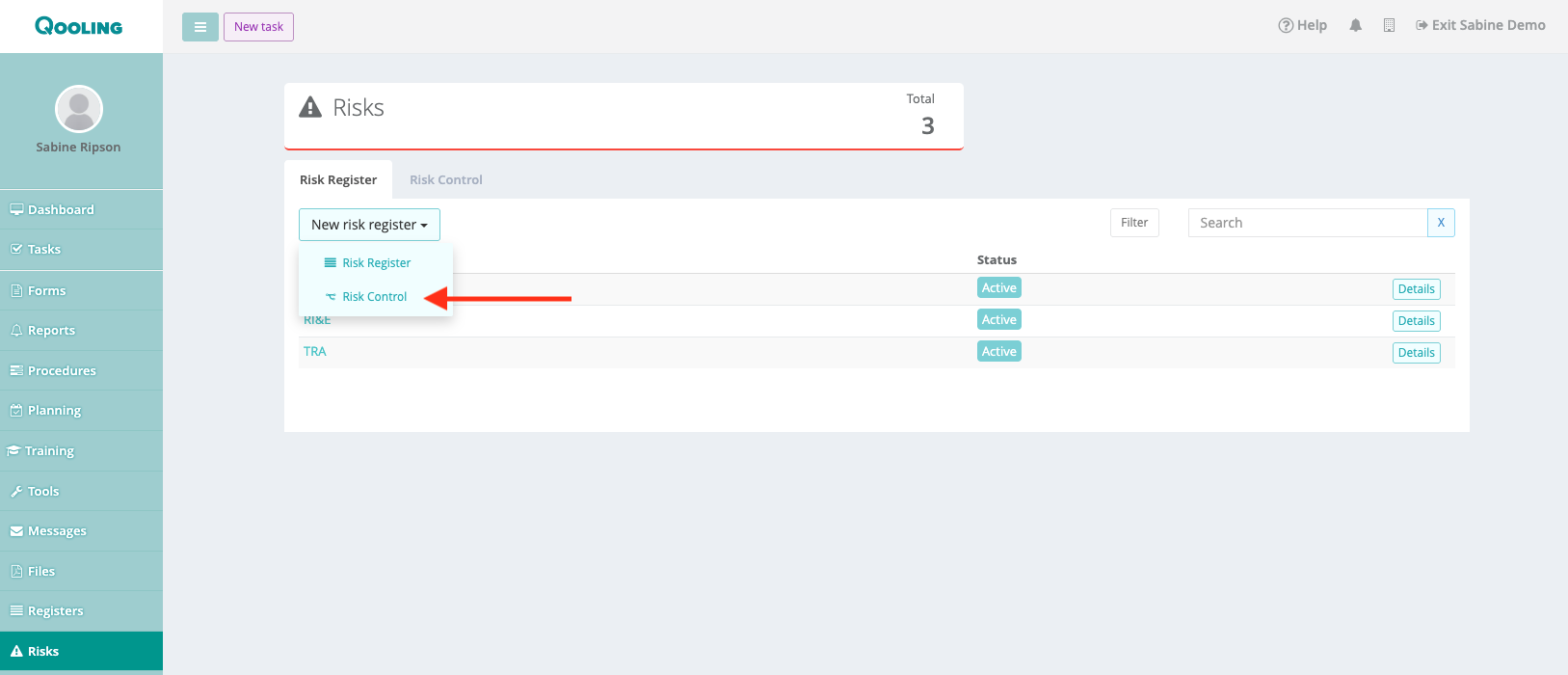
Building a Risk Control
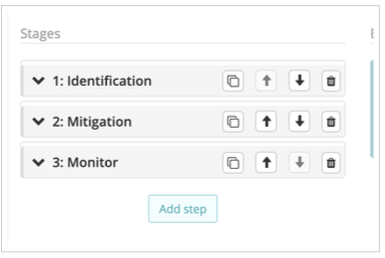
A Risk Control is your workflow. Give it a name, then define your workflow under the Stages.
Use 'Add step' to add a stage, and the arrow buttons to change the order. Select a stage to build
its form.
Settings per stage
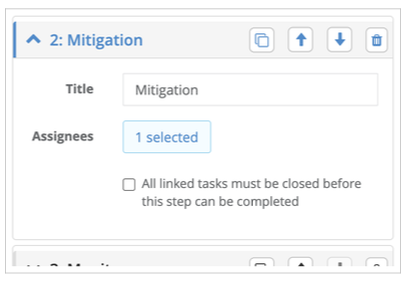 Above are the settings of a stage. Here the title is Mitigation, it has one assignee and the option to block the stage while tasks are open.
Title - the stage name your users will see.
Assignees - who is responsible for this stage. Every stage after the first needs at least one
assignee. The first stage needs none: it is filled in by whoever creates the entry.
All linked tasks must be closed before this step can be completed - when ticked, the
stage cannot be completed and the workflow cannot move on as long as a task linked to it
is still open. Use this on your Mitigation stage to make sure your control measures are
really carried out before the risk moves on to monitoring.
Scoring the risk
Add two number fields for Likelihood and Impact, then add a Calculated field for the Risk level
with the formula Likelihood multiplied by Impact. The risk level is then worked out automatically.
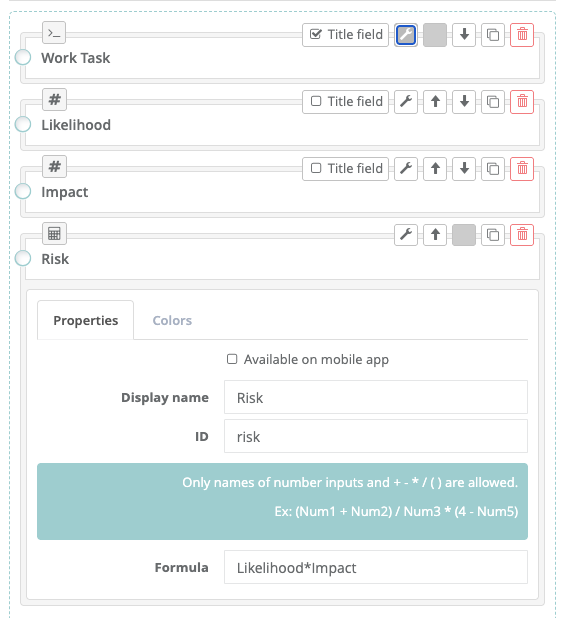
Use the Title field to select the column that will be shown in the workflow overview of all your identified risks.
Tip: score twice to show the effect of your measures
Add one set of scoring fields in the Identification or Mitigation stage, for the risk as you first investigate it and set out your measures, and a second set in the Monitor stage, for the risk after your measures. Then build a matrix on each set of scores and give them clear names, for example Risk matrix prior and Risk matrix after. This way you not only reduce the risk, you can also demonstrate it.
The Risk Matrix
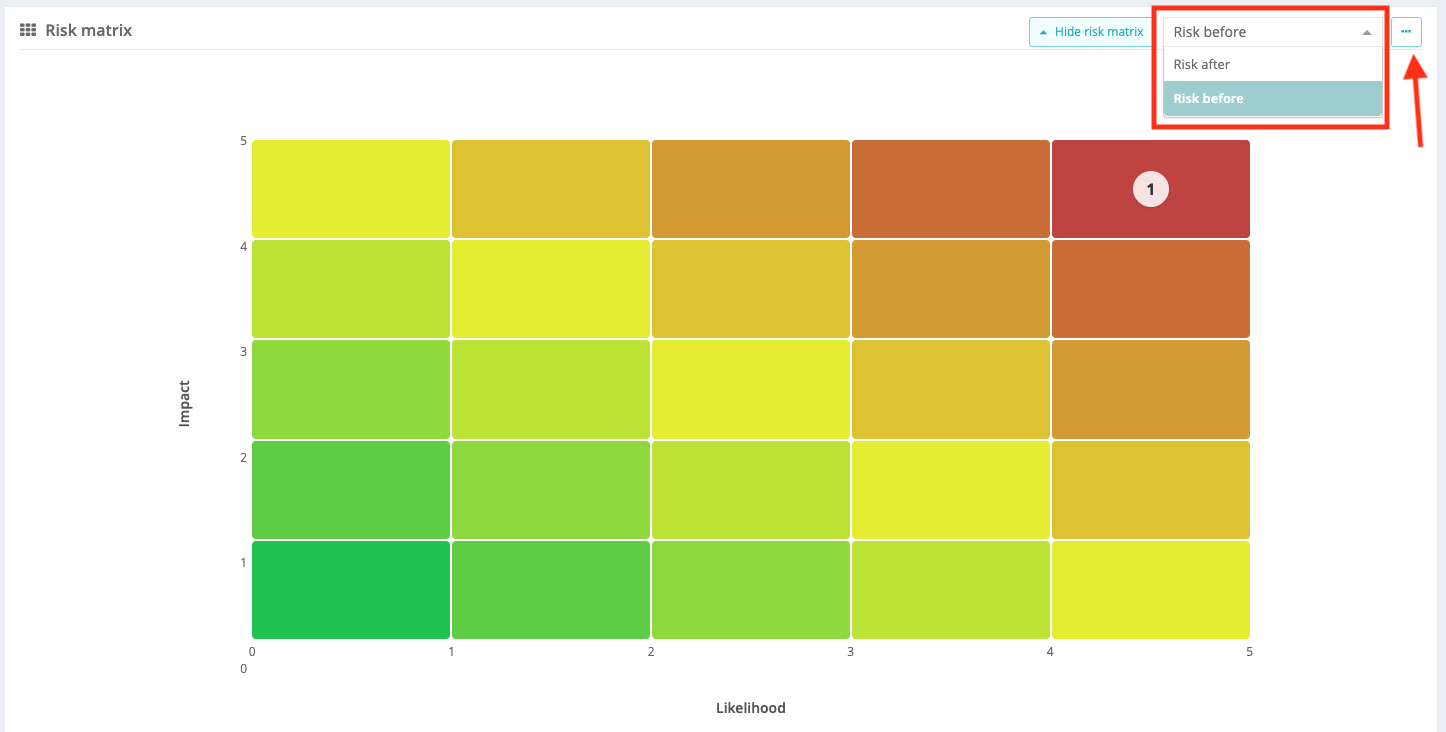
Both regular risks and Risk Control entries can be scored and shown on a risk matrix. You are
no longer limited to a single matrix: create several, for example one for safety and one for
quality, or the before and after view described above, and switch between them with the picker
in the top right. Each matrix can have its own size, from two by two up to ten by ten. Use Hide
risk matrix to collapse it and give the overview below more room. Use the 3 dots to edit your matrix, delete one or to add a new one.
Viewing your entries
The overview below the matrix shows your entries in two ways. Use the button next to New
entry to switch between them.
• Steps - one column per stage, so you can see at a glance which stages of each entry have
already been completed.
• Data - one column per field, including both sets of scores, so you can compare the risk
level before and after your measures in a single row.
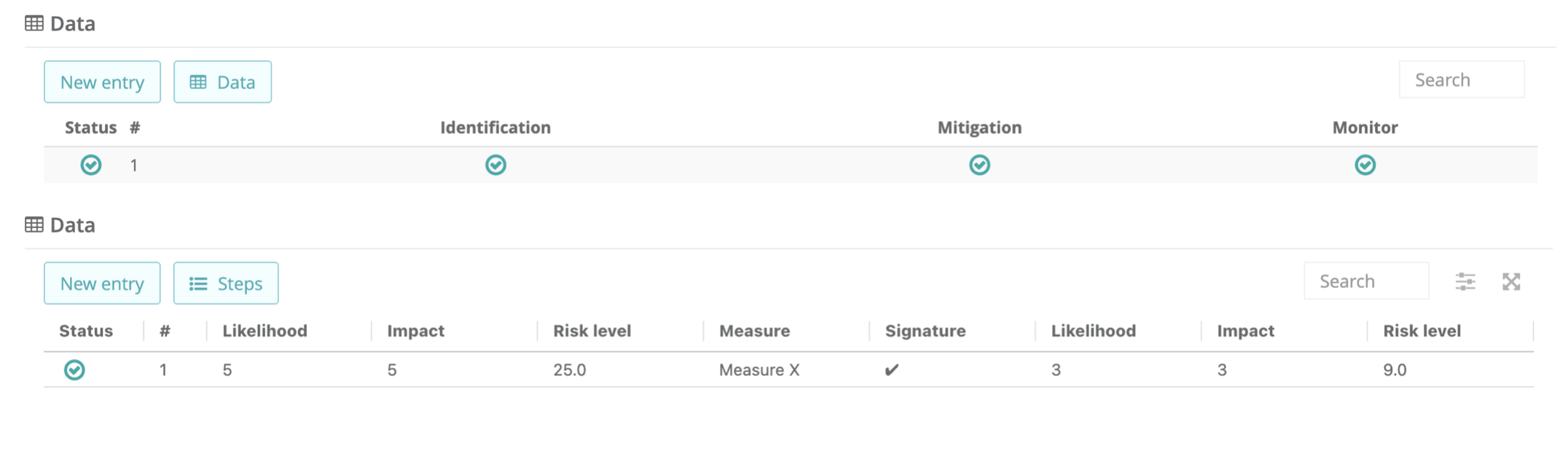
Both views have a search box, and you can choose which columns you want to see and save
that as your own view profile.
Important: When clicking on Status in the entry overview you can activate and deactivate risks. The active risks are the risks that are available to link to Issues in Qooling.
Good to know
• Users see the stages waiting for them on the dashboard card Assigned risk controls, and
receive a notification when a workflow reaches their stage.
• To protect your data, a Risk Control workflow can no longer be restructured once it has entries,
and it cannot be deleted while entries still exist.
• A Risk Control can be limited to specific user groups, so each team only sees the risk processes
that concern them.
• If you work with a group structure, headquarters can share Risk registers and Risk Control
workflows with subsidiary companies, so the whole group works from the same framework.
• Your existing risks and registers keep working exactly as before. Risk Control is an
addition, not a replacement, so you can start using it at your own pace.
Questions about this article? Open the Help menu in Qooling and choose Contact Support, or
give us a call.
Was this article helpful?
That’s Great!
Thank you for your feedback
Sorry! We couldn't be helpful
Thank you for your feedback
Feedback sent
We appreciate your effort and will try to fix the article