Step 1: Access the Forms Module
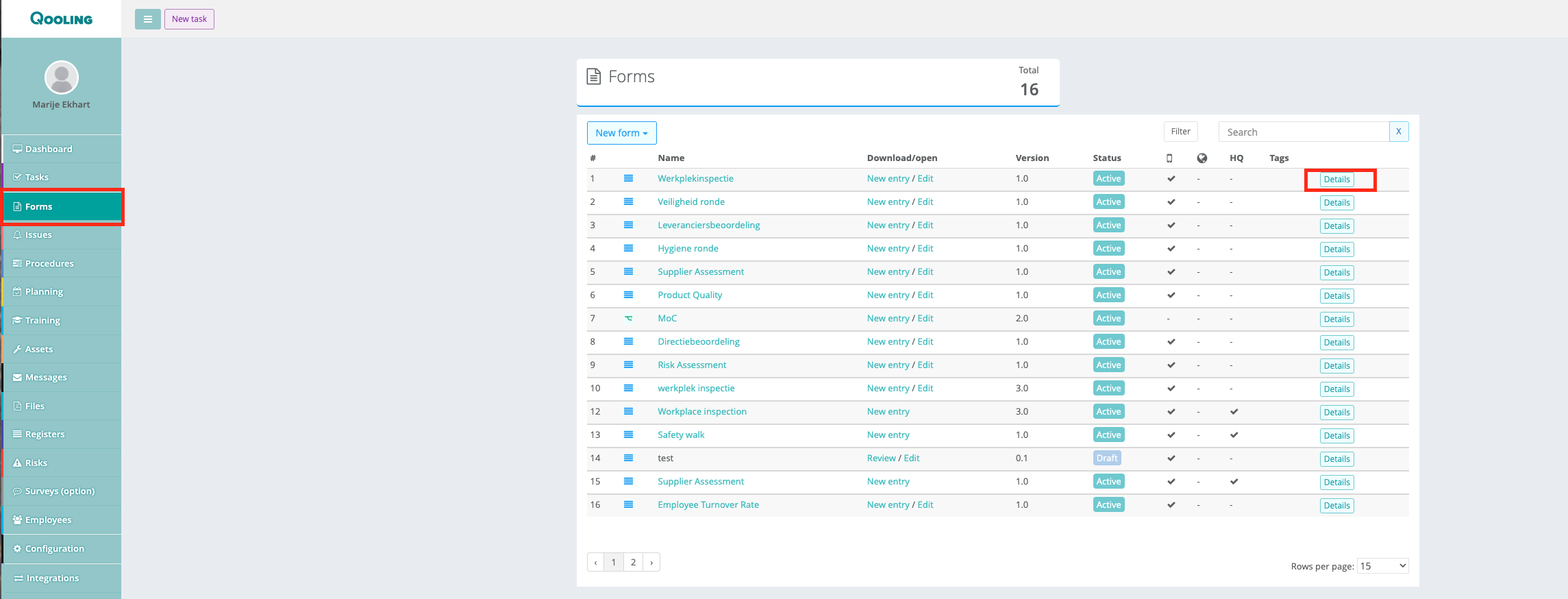
Navigate to the Forms module.
Click Details on the right side of the form to open the detailed view.
Step 2: Make the Form Public and Download the QR Code
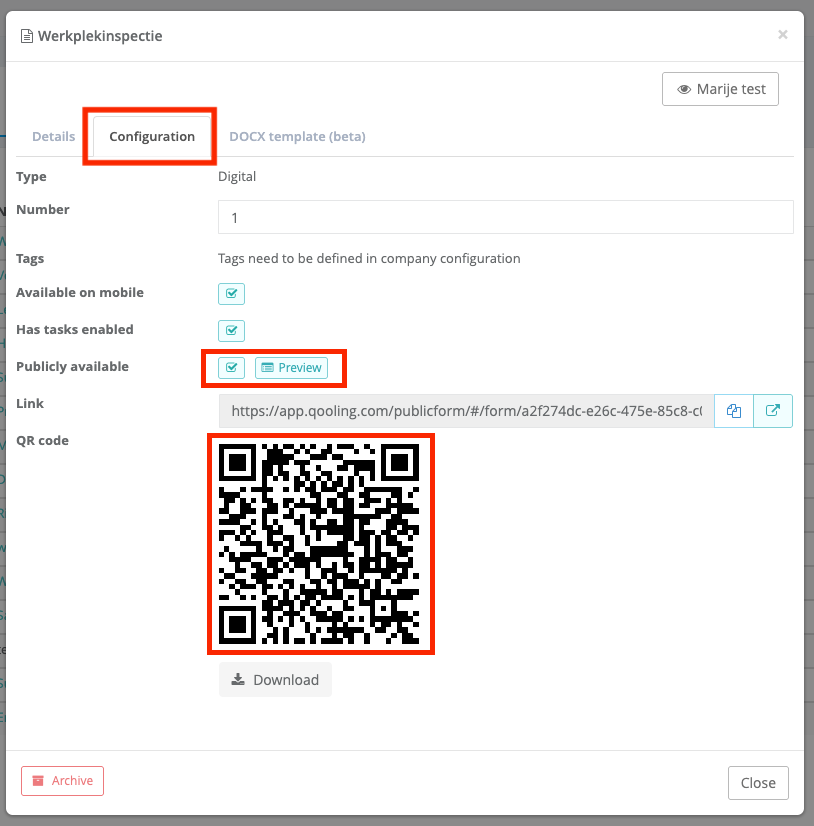
Open the Configuration tab.
Enable Publicly available for the form.
Download the QR code or copy the public link.
Place or attach the QR code in the relevant location (for example, on the production floor). Or share the public link with externals.
Step 3: Configure Public Access per Question
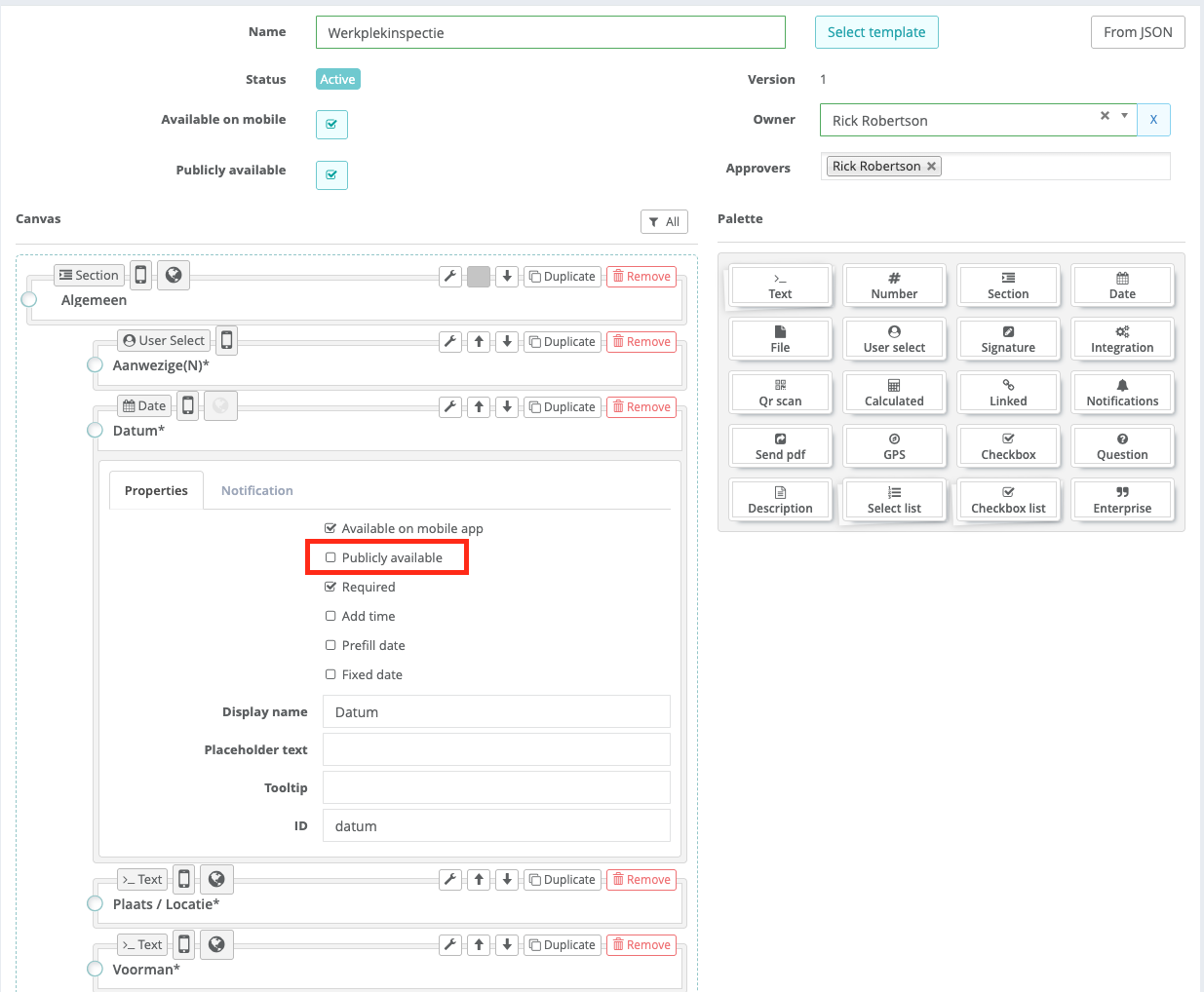
When you click on Edit Form, you can enable or disable public access per question, depending on the information you want to collect from external users.
Step 4: Scan the QR Code
Open the camera on your mobile phone.
Scan the QR code.
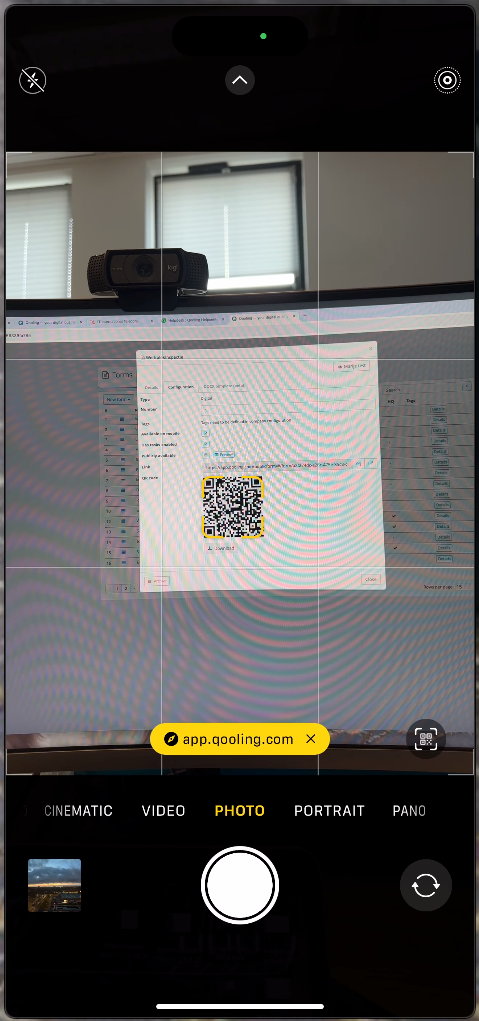
You will be automatically redirected to the form.
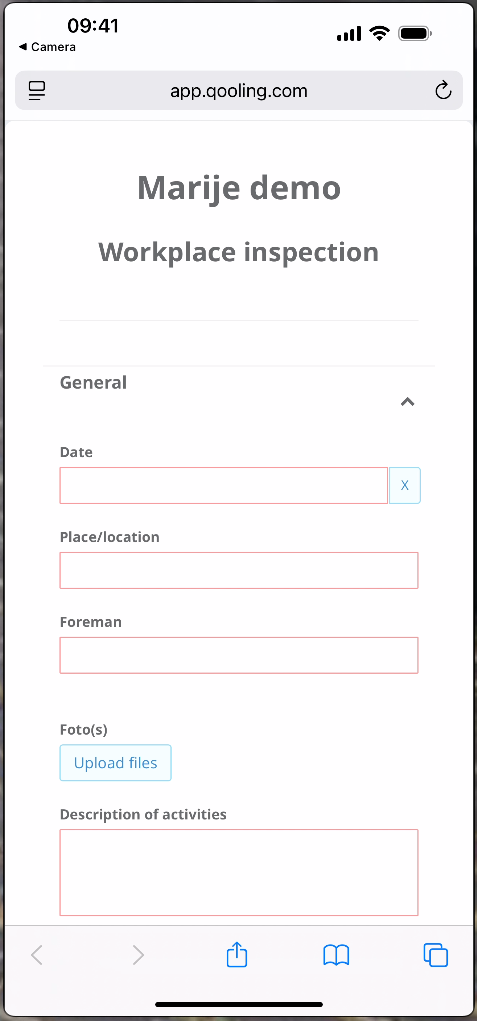
Step 5: Complete the Form
Fill in the form as required.
Submit the form.
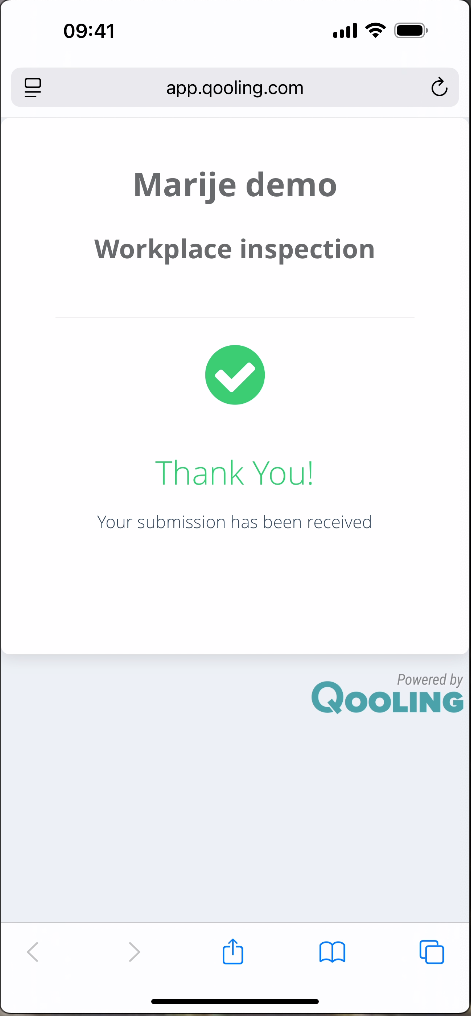
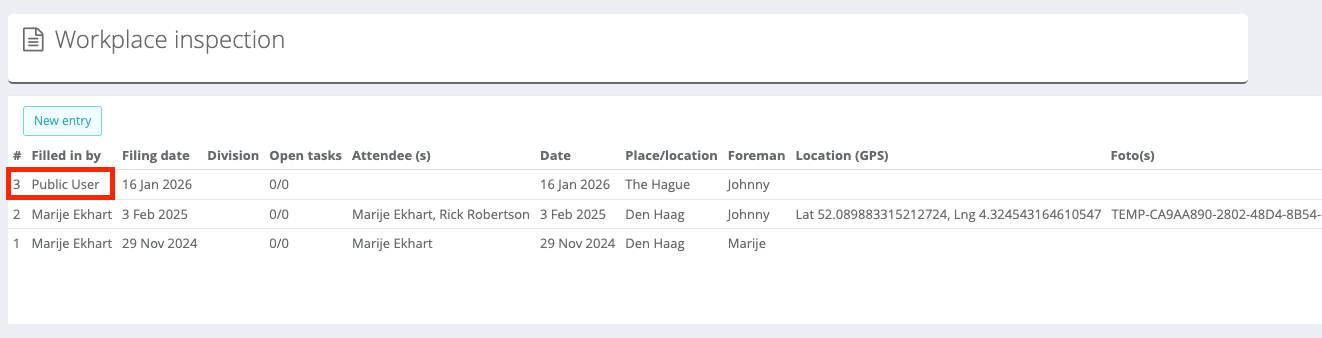
Step 6: View the Submitted Form in Qooling
Open the form in Qooling.
You will see that the form has been filled in by a public user.
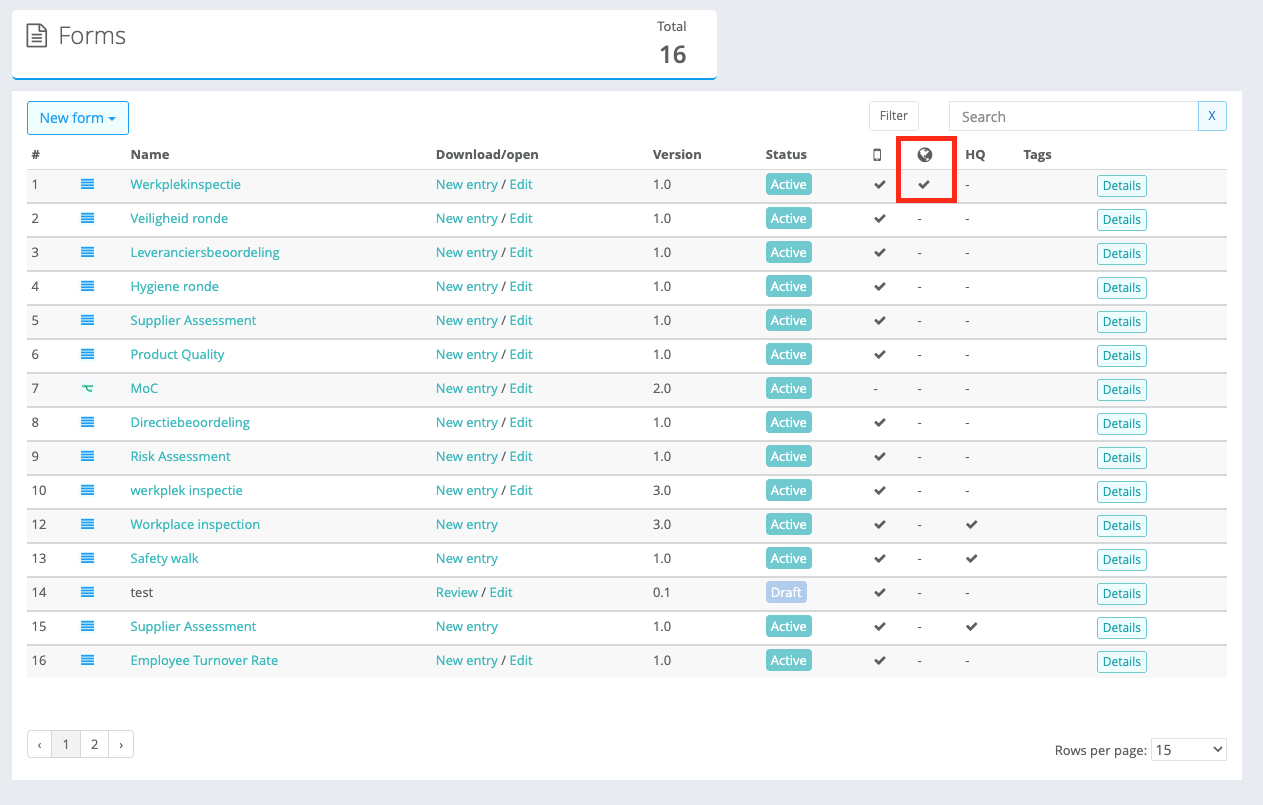
In the form overview, a globe icon with a checkmark indicates that the form is publicly available.
Was this article helpful?
That’s Great!
Thank you for your feedback
Sorry! We couldn't be helpful
Thank you for your feedback
Feedback sent
We appreciate your effort and will try to fix the article